
How to Trim a Video in Your Browser (No Software, 2026)
Trim videos in your browser, free, with no upload and no install. ~95% of browsers now run ffmpeg.wasm locally, so your file never leaves your device.

Founder
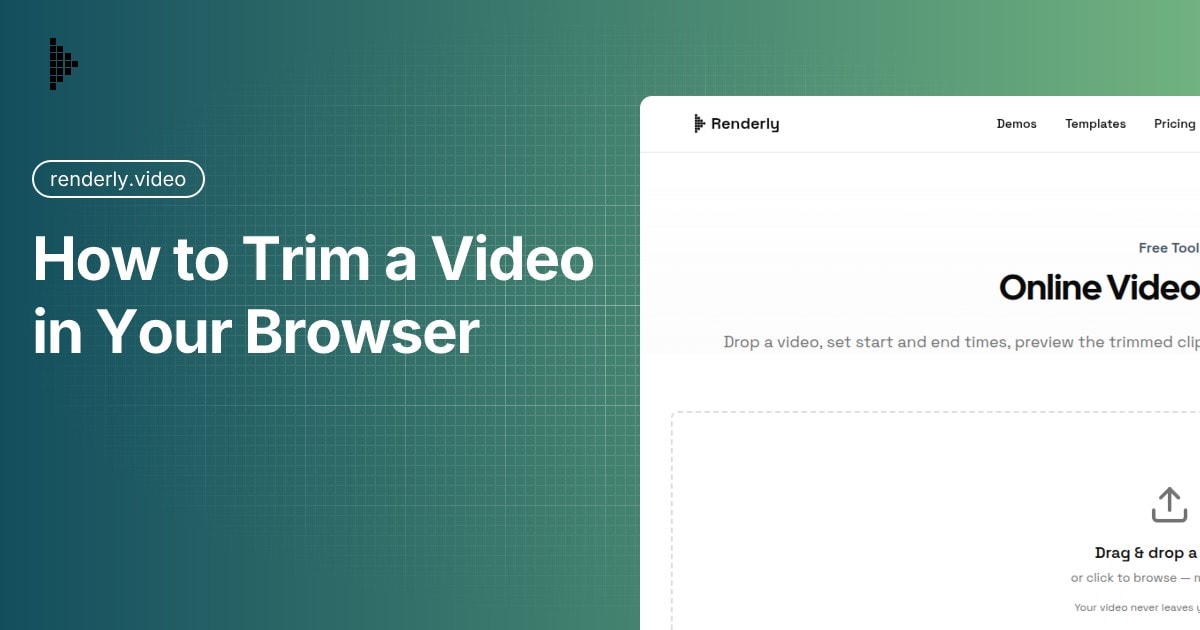
You just recorded a quick screen capture, a product walkthrough, or a social clip, and you need to chop off the first 10 seconds and the last 15. That's it. You don't need After Effects. You don't need Premiere Pro. You don't even need to install anything.
You can trim a video directly in your browser, right now, for free.
This guide walks you through exactly how to do it: what tools exist, how they work under the hood, and when a browser-based trimmer is (or isn't) the right choice.
Key Takeaways
- You can trim video entirely in your browser because roughly 95% of browsers now support WebAssembly, the tech that runs ffmpeg locally (Can I Use, 2026)
- Local processing means no upload, so your file never touches a server, which matters when 73% of Americans feel they have little control over their data (Pew Research, 2023)
- Browser trimming is ideal for clips under roughly 500 MB; multi-GB 4K or ProRes footage still needs a desktop tool or an API
- The whole process is three steps and usually under a minute
Why Trim Videos in the Browser?
Browser-based trimming wins on two things: speed and privacy. There's nothing to install and nothing to upload. That matters more than ever, because 91% of businesses now use video as a marketing tool (Wyzowl, 2026), and creators upload more than 500 hours of footage to YouTube every single minute (Synthesia, 2025). We're all cutting clips constantly. A 2 GB editor install is overkill for chopping 10 seconds off a screen recording.
Here's why the browser approach makes sense for so many people:
- No installation: You don't need to download gigabytes of editing software to cut 10 seconds off a clip
- No account required: Most browser-based trimmers don't ask you to sign up
- Works on any OS: Windows, Mac, Linux, Chromebook. If you have a browser, you're set
- Privacy: The best tools process your video locally, so your file never leaves your computer
- Speed: For a simple trim, you can be done in under 30 seconds
The trade-off? Browser tools are great for simple cuts, but they aren't built for complex edits. If you need transitions, text overlays, or multi-track editing, reach for a dedicated editor. But for trimming? A browser tool is all you need.
How Does Browser-Based Video Trimming Work?
Modern browser trimmers run the actual video processing on your own machine using WebAssembly, which roughly 95% of global browsers now support (Can I Use, 2026). Most people assume "browser-based" means your video gets uploaded to a server, processed remotely, and sent back. That used to be true. It isn't anymore.
The key technology is WebAssembly (WASM), specifically FFmpeg compiled to run inside your browser. FFmpeg is the same engine professional video software uses under the hood. When it runs via WebAssembly, your browser tab becomes a mini video processing studio.
Here's what that means in practice:
- You select a video file from your computer
- The file is loaded into your browser's memory (not uploaded anywhere)
- FFmpeg WASM processes the trim operation locally
- You download the trimmed result directly
Your video never leaves your machine. No upload, no server processing, no waiting in a remote queue. Everything happens in your browser tab. That buys you two things: privacy (sensitive footage stays put) and speed (no upload/download bottleneck, which is huge on a slow connection).
Want the technical detail? The single-threaded ffmpeg.wasm core is around 30 MB and loads on demand rather than on page load. The multi-threaded build runs about 2x faster but needs SharedArrayBuffer, which only works when the page is cross-origin isolated via COOP and COEP headers (MDN, 2025; Shotstack, 2025). That's why a good trimmer waits to load the engine until you actually pick a file.
Step-by-Step: Trimming a Video in Your Browser
Let's walk through the process using Renderly's free video trimmer, which uses the local FFmpeg WASM approach described above.
Step 1: Open the Tool and Upload Your Video
Head to the trimmer and either drag your video file onto the dropzone or click to browse. The tool accepts any format your browser supports (MP4, WebM, MOV, AVI) up to a maximum file size of 500 MB. Once it loads, you'll see a preview of your video alongside a timeline slider.
Step 2: Set Your Trim Points
You have two ways to set the start and end points:
- Drag the slider handles: Grab the left handle to set where the trimmed clip starts and the right handle to set where it ends. Whatever sits between the handles is what you keep.
- Type exact times: Need precision, like a cut at exactly 1:23.5? Type the start and end times straight into the input fields.
Use the play button to preview your selection. The player loops through just the trimmed region, so you can confirm it looks right before you export.
Step 3: Export and Download
Hit export. FFmpeg WASM processes your video using H.264 video and AAC audio at a CRF of 23, the same codecs YouTube, Instagram, and basically every video platform accepts. A progress indicator shows you where it's at. When it finishes, the trimmed MP4 downloads automatically. No watermarks, no quality loss, no strings attached.
That's it. Three steps, usually under a minute for most clips.
Is Browser-Based Trimming Actually Private?
Yes, and that's the quiet advantage. With tools that process locally, your video never leaves your device, which sidesteps the data-control problem most people now worry about. 73% of Americans say they feel they have very little or no control over the data companies collect about them, and 67% say they understand little to nothing about what those companies actually do with it (Pew Research, 2023).
A trimmer that runs entirely in your browser removes the whole question. There's no server-side copy to leak in a breach, hand over to a third party, or quietly feed into a training set. For internal recordings, customer footage, or anything you'd rather not hand to a stranger's server, that's the difference between "probably fine" and "definitely fine."
The catch: not every online trimmer works this way. Plenty still upload your file to be processed remotely. The tell is in how fast the tool starts working on a large file. If a 300 MB upload bar appears, it's going to a server. If processing begins instantly, it's local. When privacy matters, check the tool's policy before you drop a file in.
Tips for Getting the Best Results
Keep file sizes reasonable. The tool supports up to 500 MB, but everything runs in your browser's memory, so a 200 MB file processes much faster than a 500 MB one. For multi-GB raw footage, a desktop tool will handle it better.
Use a modern browser. Chrome and Edge tend to have the best WebAssembly performance. Firefox works fine too. Safari can be slower for WASM-heavy tasks, so keep it updated.
Close other heavy tabs. Video processing is memory-intensive. If you've got 40 tabs open plus a video call running, your browser might struggle. Close what you don't need before trimming.
Check the output before sharing. Always play through the trimmed video to confirm the cut points landed where you wanted. Re-trimming is faster than re-uploading to a platform and noticing the mistake later.
Need a different edit? Trimming is just one cut. If you need to change the aspect ratio, our video resizer runs the same local way, and you can also convert a clip to a GIF or pull the audio out as an MP3 without uploading anything.
When Browser-Based Trimming Isn't Enough
The real ceiling is file size, not features. Browser memory comfortably handles clips up to around 500 MB, but 4K H.264 footage runs roughly 225 MB per minute at 50 Mbps and about 450 MB per minute at 100 Mbps (standard bitrate math: bitrate × time ÷ 8). Apple ProRes is worse, up to 30x larger than HEVC (Apple, 2024), so even a couple of minutes of 4K ProRes blows past what a browser tab can hold.
Beyond raw size, here are the scenarios where you'll want something more than a browser tab:
You need to trim hundreds of videos. Cutting intros from 500 webinar recordings one at a time in a browser isn't practical. You want a programmatic solution with an API.
You need to add text, music, or transitions. Trimming is just cutting. Title cards, background music, and transition effects need an actual video editor.
Your files are enormous. Raw 4K footage from a professional camera can run 10 to 50 GB per clip. That's beyond what browser memory handles comfortably.
You need true frame-level precision. Browser tools that stream-copy cut only at keyframes. Tools that re-encode (like ours, using H.264 at CRF 23) land much closer to your exact mark. But for broadcast or cinema work where every frame counts, a professional NLE is still the right call.
That first scenario, trimming at volume, is exactly what a video API is built for. If you're processing clips by the hundred or wiring trimming into a product feature, see how the numbers compare in our video API vs traditional production cost breakdown.
Common Questions
Does the video get uploaded to a server?
Not with tools that use FFmpeg WASM, like our video trimmer. Everything happens locally in your browser. Some other online trimmers do upload your video to a server for processing, so check the tool's privacy policy if that matters to you.
Will trimming reduce the video quality?
It depends on the tool. Some re-encode at a lower quality to save processing time. Good tools (ours included) use a high-quality H.264 encode at a CRF of 23, which is visually indistinguishable from the original for most content.
What video formats are supported?
Any format your browser can play. In practice, MP4, WebM, and MOV work everywhere. AVI and MKV work in most modern browsers, but support varies. The output is always MP4, which is universally compatible.
Is there a time limit on the video?
No duration limit. You can trim a 2-hour video if your browser can load it into memory. The practical limit is file size (around 500 MB for most browser tools) rather than length, and 500 MB comfortably covers most screen recordings and social clips.
Can I trim multiple segments from the same video?
Most browser trimmers (ours included) export one continuous segment per pass. To cut out a section in the middle, trim twice, once for the part before the cut and once for the part after, then join them with a separate tool.
Wrapping Up
For the vast majority of "I just need to cut this video" moments, a browser-based trimmer is the fastest path from raw clip to finished file. No downloads, no accounts, no watermarks, and nothing uploaded to a server you don't control.
If that's what you need right now, give our free video trimmer a try. It runs entirely in your browser, supports files up to 500 MB, and exports clean MP4s in seconds.
And if you ever outgrow manual trimming and need to process videos programmatically at scale, that's exactly what Renderly's video API is built for. But for a quick trim? The browser tool is all you need.
Frequently asked
Does the video get uploaded to a server when I trim it in the browser?
Will trimming reduce the video quality?
What video formats can I trim in the browser?
Is there a time limit on the video I can trim?
Can I cut multiple segments from one video in the browser?
Related Articles

Video API vs Traditional Video Production: 2026 Cost Comparison
Agency video runs $1,000–7,000 per finished minute (Synthesia, 2025). Template APIs render the same minute for $0.10–0.20. The real cost math, tier by tier.
August 5, 2026
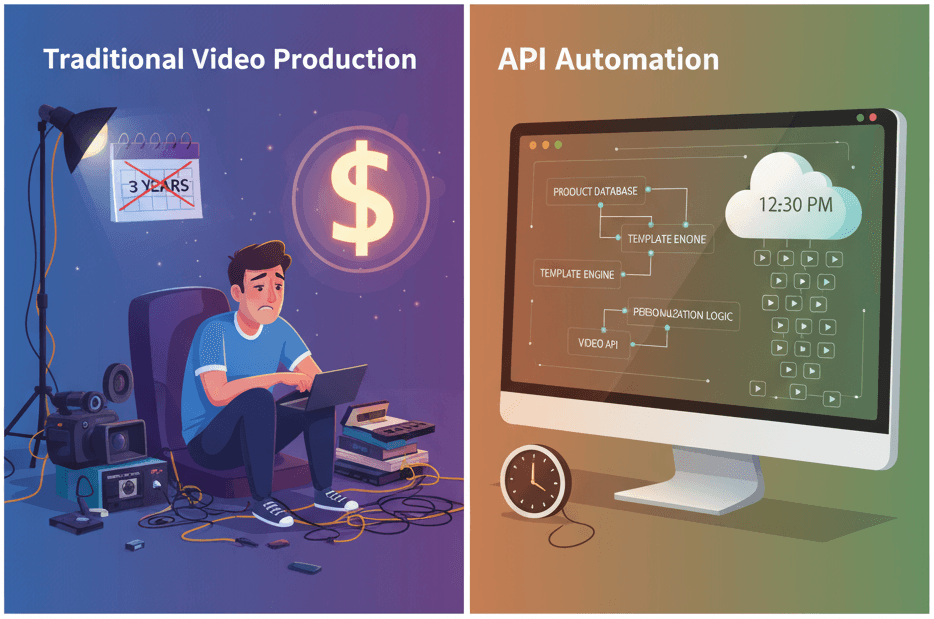
How to Generate 1,000+ Personalized Videos with API Automation (2026 Update)
A 30-second 1080p render costs $0.10 on a template API and $1.50+ on a generative one. Build the bulk pipeline: 1,000 personalized videos queued in under 20 minutes.
May 18, 2026
The Complete Guide to Automating Video Creation in 2026
Automate video creation in 2026 with templates, APIs, and AI agents. An expert production company charges about $1,000/min; a template render, $0.10-0.20.
July 28, 2026