
Automated Course Video: One Lesson Video Per Row
Render a consistent lesson video for every row of a course outline, in 16:9 for the course player and 9:16 for promotion, from the same eight fields.
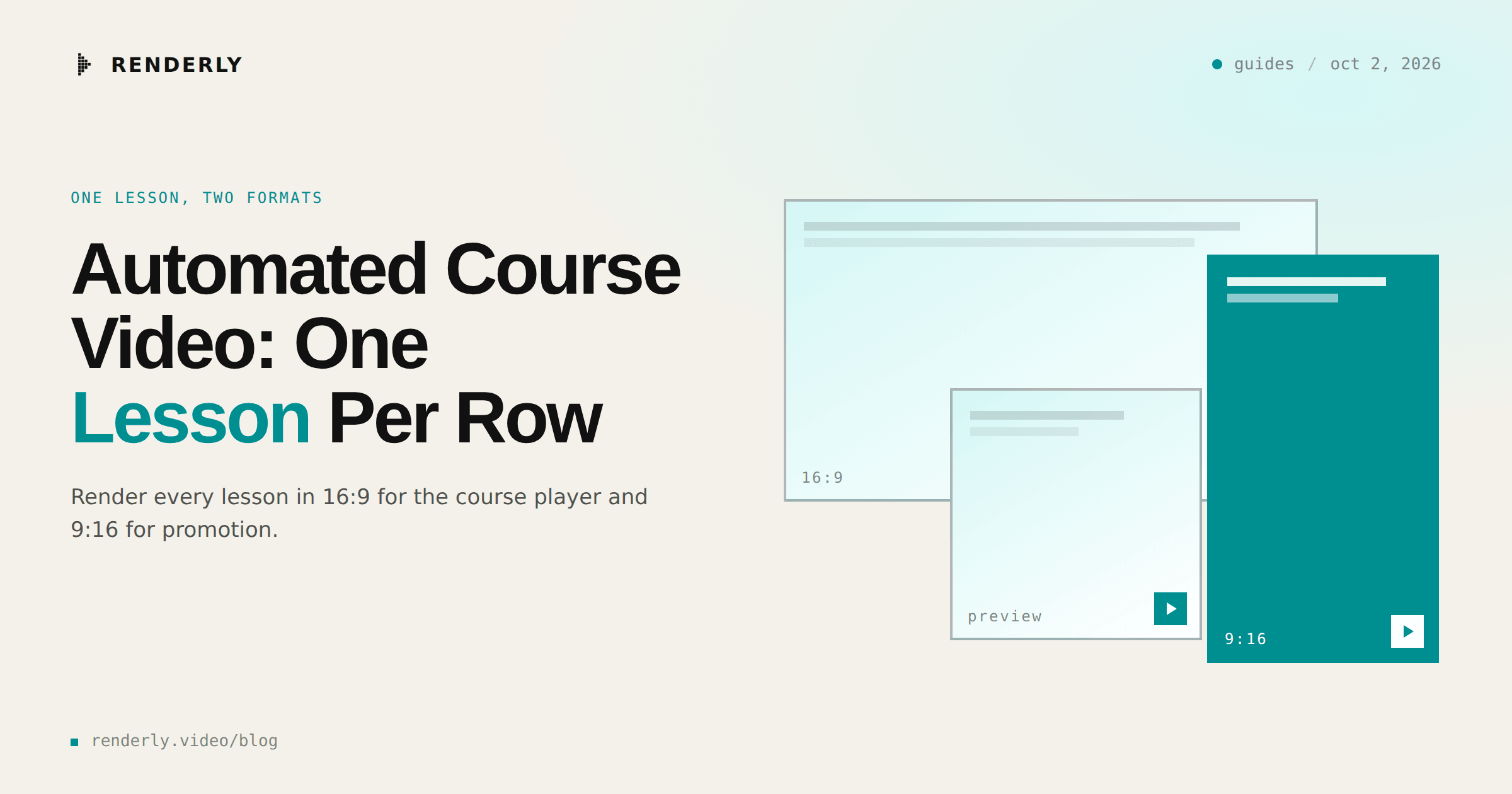
An automated course video is one lesson video rendered per row of your course outline. Write each lesson as eight fields, POST one request per lesson, and get back a 43-second 16:9 video for the course player. The same eight fields render a 26-second vertical cut for promotion. A 40-lesson course becomes one script, not 40 edits.
The finished video
This guide renders Teach One Thing Well - a 43-second 1920x1080 lesson in seven scenes: a title card, three numbered step scenes, a recap that stacks all three steps, a takeaway line and an outro with the instructor and the logo.
Its vertical sibling, Lesson Explainer - Shorts Cut, is 1080x1920 and 26 seconds long, and takes the same eight fields.
What you need
- A Renderly API key. Create one in the dashboard under Settings → API keys.
- A course outline with one row per lesson. A CSV, a sheet or a database is enough.
- The course logo at a URL that serves the file directly.
Step 1 - Decide whether the course is already written
Search this query and the results are AI course generators. They take a prompt or a document, write the script, and put an avatar presenter on it. That is a different product, and for a course that does not exist yet it is the right one.
A template earns its place when the outline already exists. Every lesson gets the same palette, type, timing and progress bar, so lesson 3 and lesson 38 look like one course. The cost per lesson is fixed by its length. When you fix a typo, you render one lesson again and it matches the others exactly.
Step 2 - Turn the course outline into eight fields per lesson
| Field | Scenes | Set |
|---|---|---|
topic_title | 1 | Per lesson |
subtitle | 1 | Per lesson |
point_1, point_2, point_3 | 2, 3, 4 and the recap | Per lesson |
takeaway | 6 | Per lesson |
instructor_name | 7 | Once per course |
brand_logo | 7 | Once per course |
The format is fixed at three points. A lesson with five steps is two lessons, or
one lesson with the five steps merged into three. Send every field: an omitted
one keeps the sample value, so a missing takeaway shows the template's line
about passwords in your course.
Step 3 - Check the points against the recap line
Each point appears twice in the 16:9 cut. The step scene shows it at 78px over
up to three lines, and the variables endpoint reports maxCharacters: 101 for
point_1 from that scene. The recap scene repeats all three points at 48px on
one line each. The same estimator gives that line room for about 72 characters,
so 72 is the limit to write to. The vertical cut has no recap and allows about
116.
A point that is too long does not fail. The tail is hidden and the render still
succeeds. Preview each lesson before you render the course. Previews take the
same body, cost nothing and return a previewUrl and a warnings array:
curl -X POST https://renderly.video/api/v1/previews \
  -H "Authorization: Bearer $RENDERLY_API_KEY" \
  -H "Content-Type: application/json" \
-d '{ "templateId": "teach-one-thing-well", "replacements": { "point_1": "Open Settings, choose Security, and paste the metadata URL from your identity provider." } }'The warning check runs on every overlay, so a recap line that will clip returns
TEXT_MAY_CLIP even when the step scene fits. It is an estimate from average
character width, so open the previewUrl for every lesson it flags.
Step 4 - Render the lesson and its vertical cut
curl -X POST https://renderly.video/api/v1/renders \
  -H "Authorization: Bearer $RENDERLY_API_KEY" \
  -H "Content-Type: application/json" \
  -d '{
    "templateId": "teach-one-thing-well",
    "replacements": {
      "topic_title": "Set up Single Sign-On",
      "subtitle": "Connect your identity provider in three steps.",
      "point_1": "Add your IdP metadata URL in Settings → Security.",
      "point_2": "Map email and role attributes to your team fields.",
      "point_3": "Send a test login, then flip SSO to required.",
      "takeaway": "One config, zero password resets - ever again.",
      "instructor_name": "Maya Chen, Solutions Engineer",
      "brand_logo": "https://renderly.video/logo.svg"
    }
}'The response returns a jobId and creditsUsed: 1 immediately. For the
vertical cut, send the same body with "templateId": "lesson-explainer-shorts-cut".
Loop over the outline with the pattern in the CSV guide. Requests are limited per minute by plan: 120 on Creator and 300 on Business. There are no idempotency keys, so a retry after a timeout can render and charge for the same lesson twice. Check the job list before you retry.
Step 5 - Attach each MP4 to its lesson
The render request has no label field, so keep your own map from lesson to
jobId as each POST returns. Register one webhook with
POST /api/v1/webhooks for render.completed, look the lesson up by jobId,
and publish the outputUrl to your course platform. The
webhooks guide covers verifying
the signature.
What this costs at scale
Renderly bills 1 credit per minute of 1080p output, rounded up to the nearest half credit. The 43-second lesson rounds up to 1 credit. The 26-second vertical cut rounds up to half a credit. Both sizes have the pixel count of 1080p, so both bill at the base rate.
| Lessons | 16:9 only | Both cuts | Plan | Cost |
|---|---|---|---|---|
| 100 | 100 credits | 150 credits | Creator, $29/mo | included |
| 1,000 | 1,000 credits | 1,500 credits | Business, $99/mo | included, or $159 with both cuts |
The $159 is the Business plan plus 500 extra credits at $0.12. A course is rendered once and changed a lesson at a time, so after the first month the cost is the lessons you edit.
Where to go next
The template page has the preview and the full field list. The case for a fixed template over a generator that changes the look every run is in template-based video vs AI-generated video. If the outline lives in Notion, the Notion guide unwraps its properties into these same eight fields.
Frequently asked
Does this write the lesson script for me?
Can one row render both the 16:9 lesson and the vertical cut?
What happens when a point is too long?
How do I fix a typo after the course is published?
Can I add a voiceover to each lesson?
Related guides
Bulk Video from CSV: Generate One Video per Row
Turn a CSV export into finished videos. Map headers to template variables, send one render request per row from a resumable script, and collect every result.
Google Sheets to Video: Automate Video Creation from a Sheet
Turn spreadsheet rows into finished videos. Connect a Google Sheet to the Renderly API with Apps Script, map columns to variables, and render every row.
Notion to Video: Automate Video Creation from a Database
Turn Notion database pages into finished videos. Connect an integration, unwrap the typed properties into template variables, and render every row automatically.