
AI Product Videos That Show Your Real Product
Send one product photo and Renderly generates an AI clip and AI photos that keep your real product, then renders a finished ad. About 8.5 credits per product.

Founder
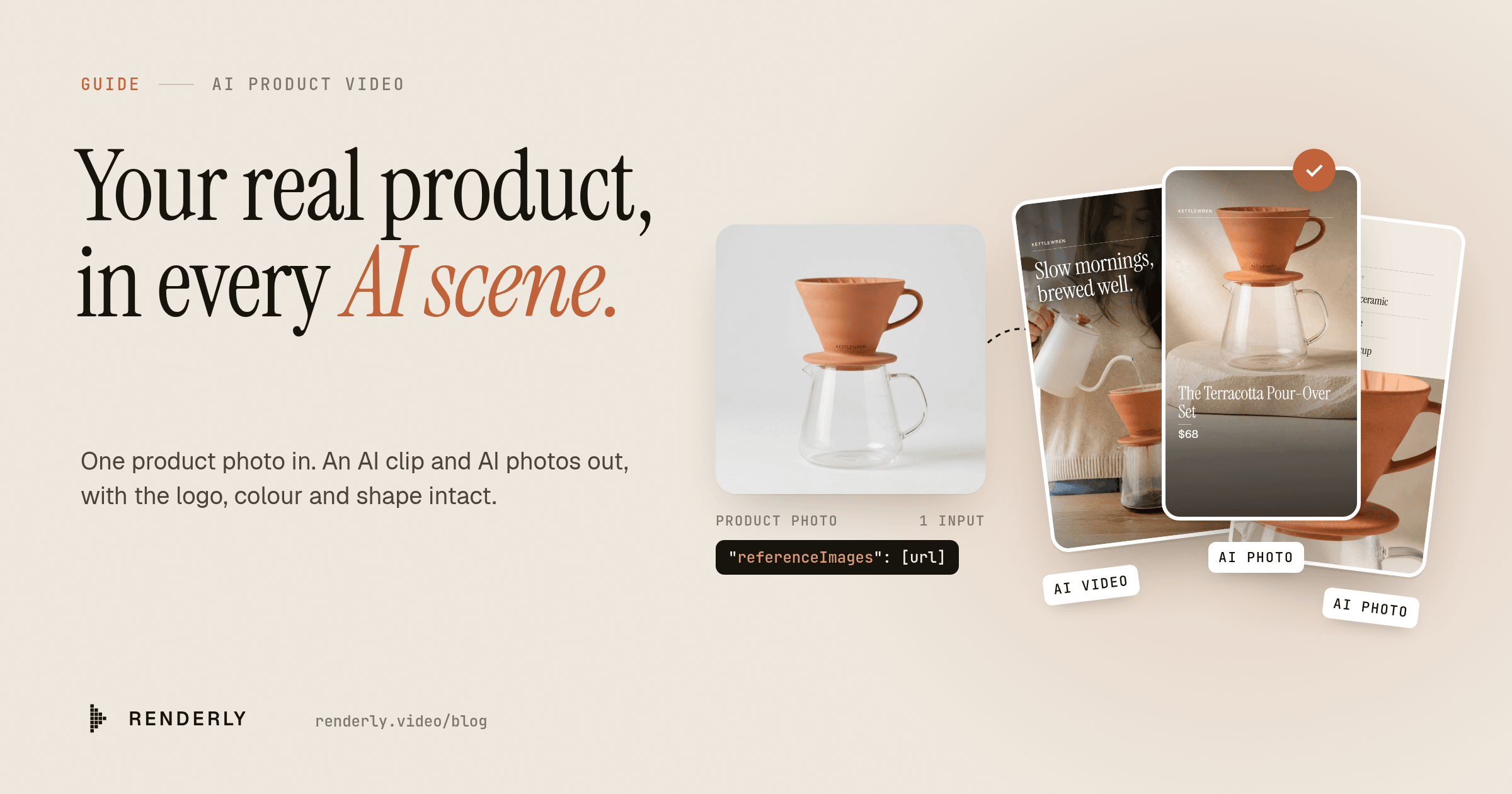
A baby-products brand wrote to us with a problem we hadn't solved yet. They liked AI images for their social ads, but, in their words, "the products on the pics are different than real ones - logo, colour or the product itself." An AI model that only reads a prompt invents its own version of your product. For a store, that's useless.
So we built reference images. You give Renderly a photo of the product, and every AI scene keeps it: the shape, the colour, the logo. This tutorial shows the whole flow with a template you can use today, from one product photo to a finished 9:16 ad, and then to a whole catalogue.
Here's the finished ad, for a fictional baby brand we made for this post:
Every photo and the opening clip in that video are AI. The only real input was one product photo of the bib. The "mossling" print is on the bib in all of them.
Key Takeaways
- Add
referenceImages(1-4 product photo URLs) to an AI image or video value, and the AI keeps your real product- The public AI Product Ad template turns one photo into a 21-second 9:16 ad: an AI clip, three AI photos, your copy and an end card
- About 8.5 credits and 4-5 minutes per product, and repeats are free
- One template serves a whole catalogue: loop over your products and send one request each
What changes when the AI sees your product?
Everything about the product. We rendered the same coffee product twice with the same prompts. The first time we sent only the prompts. The second time we added the product photo as a reference:
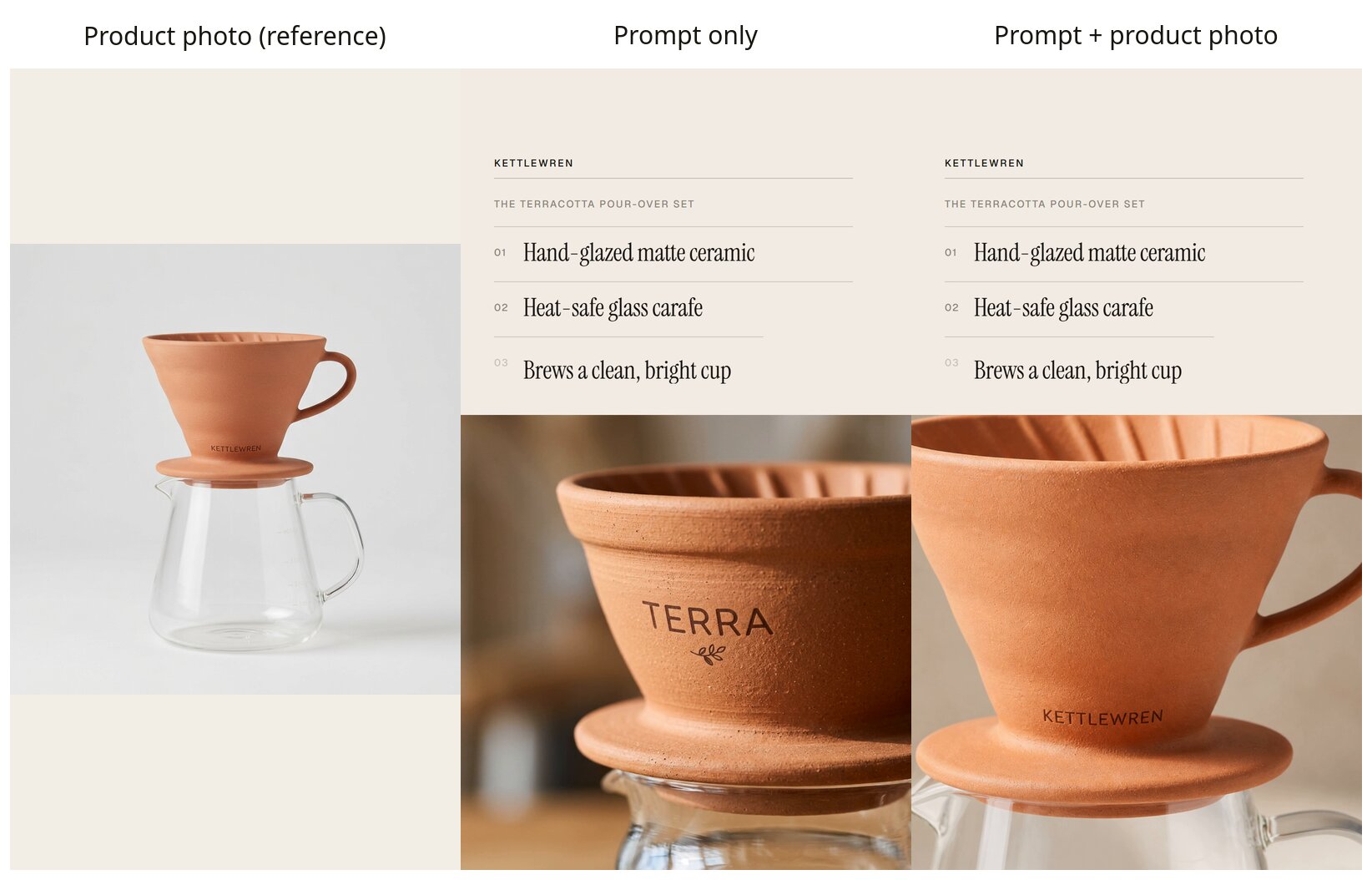
Without the photo, the model knew it was a "terracotta pour-over dripper" and drew a nice one, but it printed "TERRA" on it, and the clip showed another name again. With the photo, "KETTLEWREN" is on the dripper in every scene, and the dripper has the same shape as the real one.
Here's how it works behind the scenes:
- AI photos go to
gpt-image-2as an image edit with your product photo attached, then Renderly crops the result to the exact shape of the template slot. - AI clips take two steps. Renderly first makes a still of your product at the clip's exact shape (9:16 or 16:9), then Veo 3.1 Fast animates that still. Because the clip starts from your product, the product stays right as it moves.
- Renderly also adds a fixed instruction to your prompt: keep the product exactly as it is, with the same shape, colour, logo and printed text.
The template: AI Product Ad
We built a public template for this: AI Product Ad (Reference Photo), id ai-product-ad-9x16. It's a 21-second 9:16 paid-social ad with five scenes cut on the beat of a music bed:
| Scene | What's on screen | AI slot |
|---|---|---|
| Hook | A video of the product in use, with your headline | hook_clip (AI video) |
| Hero | The product on a stone plinth, with name and price | hero_image (AI photo) |
| Features | Three numbered features over a close-up | detail_image (AI photo) |
| Lifestyle | The product at home, with one short line | lifestyle_image (AI photo) |
| End card | Your logo, offer, a CTA button and your URL | - |
We designed it for stores with big catalogues, not for one product. The design is neutral cream and ink with an editorial serif, so a terracotta dripper and a sage bib both look at home in it. Every line of copy sits inside the TikTok and Reels safe zones, away from the buttons and captions those apps draw on top.
It has 16 variables. Four are the AI slots above. The other twelve are your copy and logo: headline, product_name, price, feature_1, feature_2, feature_3, lifestyle_text, store_name, offer, cta, url and logo.
Step 1: Get a good product photo
Most stores already have the right photo: the main catalogue shot. One product, a plain background, front-facing, logo visible. It needs to be a PNG, JPEG or WebP at a public https:// URL, at most 10 MB. Renderly checks every reference URL before it charges anything, and a URL that doesn't answer with an image gets a clear 400 error.
A few things we learned from testing:
- Flat, evenly lit shots keep the product best. The model copies what it can see clearly.
- Make the logo legible in the photo. If the print is tiny or blurry, the model can't read it either.
- Up to four photos help with complex products. A front and a back view, for example.
Step 2: Write prompts once, for every product
The trick for a catalogue is to write each prompt once, with a {product} placeholder, and fill it from your product data. These are the prompts the template's demo uses:
Hook clip ({use_action} is what a person does with the product):
A real everyday moment of a person using the {product}: {use_action}.
Natural movement, the product clearly visible and exactly as in the
reference, the logo facing the camera, bright calm modern home, soft
natural window light, warm cream and oak tones, handheld documentary
camera with gentle movement, authentic premium DTC commercial
Hero photo:
The {product} as the hero of a premium product photo, displayed on a
smooth sculpted stone plinth, soft warm side daylight, calm seamless
backdrop in warm stone and cream tones, gentle soft shadows, the logo
facing the camera, the product centred in the upper half with clean
empty space in the lower third of the frame, high-end DTC brand
advertising photography
Close-up: Close-up detail shot of the {product}, filling most of the frame, showing its material, texture and finish, the printed logo sharp and legible, soft raking daylight, neutral warm background, shallow depth of field, premium macro product photography
Lifestyle: Lifestyle photo of the {product} in real everyday use in a bright, calm modern home, soft natural window light, warm neutral interior in cream, oak and linen tones, candid and authentic, the product clearly visible and exactly as in the reference, the top third of the frame calm and uncluttered, editorial DTC brand photography
For the bib, {use_action} was "a toddler wearing the bib eats from a bowl with a spoon, a few bits of food drop into the bib's front pocket". For the coffee set, it was "a person slowly pours hot water from a gooseneck kettle through the dripper, coffee drips into the carafe, steam rising". That one line is the only creative writing per product, and you can keep a default per category.
Step 3: Send the render request
Put a video value on hook_clip, image values on the three photo slots, and the same product photo in each one's referenceImages. Here's the coffee request, with the prompts cut short:
POST https://renderly.video/api/v1/renders
Authorization: Bearer rnd_...

{
  "templateId": "ai-product-ad-9x16",
  "replacements": {
    "hook_clip": { "video": {
      "prompt": "A real everyday moment of a person using the matte terracotta ceramic pour-over coffee dripper on a glass carafe: a person slowly pours hot water ...",
      "referenceImages": ["https://cdn.example.com/products/pour-over.png"]
    } },
    "hero_image": { "image": {
      "prompt": "The matte terracotta ceramic pour-over coffee dripper on a glass carafe as the hero of a premium product photo ...",
      "referenceImages": ["https://cdn.example.com/products/pour-over.png"]
    } },
    "detail_image": { "image": { "prompt": "Close-up detail shot of the ...", "referenceImages": ["https://cdn.example.com/products/pour-over.png"] } },
    "lifestyle_image": { "image": { "prompt": "Lifestyle photo of the ...", "referenceImages": ["https://cdn.example.com/products/pour-over.png"] } },

    "headline": "Slow mornings, brewed well.",
    "product_name": "The Terracotta Pour-Over Set",
    "price": "$68",
    "feature_1": "Hand-glazed matte ceramic",
    "feature_2": "Heat-safe glass carafe",
    "feature_3": "Brews a clean, bright cup",
    "lifestyle_text": "Make the morning slow.",
    "store_name": "Kettlewren",
    "logo": "https://cdn.example.com/brand/logo-dark.png",
    "offer": "Free filters with your set",
    "cta": "Shop now",
    "url": "kettlewren.co"
  }
}The response comes back with status: "GENERATING" and a jobId. Renderly makes the three photos and the product still first, then starts the clip, and the render waits until the clip is ready. Poll GET /api/v1/renders/:jobId, or register a webhook and wait for render.completed.
We ran exactly this request on production. The request answered in 67 seconds, the clip was ready about two and a half minutes later, and the finished video was done 4 minutes 22 seconds after we sent it:
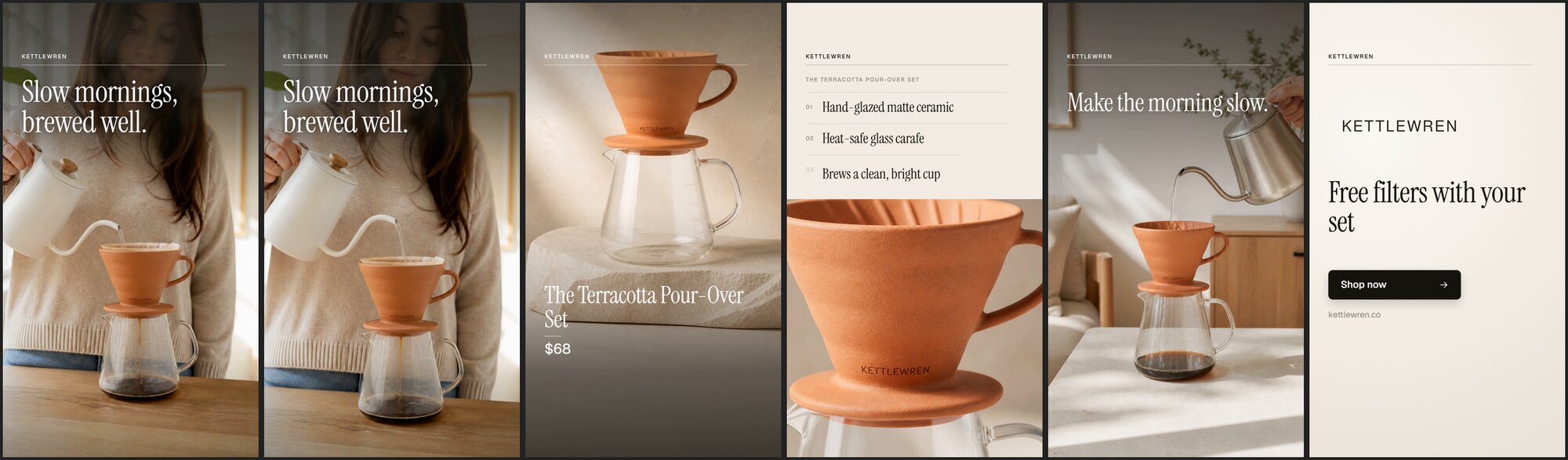
Same template, a different product in a different category, and no layout change. The only things we changed were the photo, the prompts and the copy. Here's the video that request returned:
Step 4: Run it across your catalogue
Once one product looks right, the rest is a loop. Here's the shape of it in Node:
const products = await loadCatalogue(); // [{ name, photoUrl, useAction, price, features, ... }]

for (const p of products) {
  const ref = [p.photoUrl];
  const res = await fetch("https://renderly.video/api/v1/renders", {
    method: "POST",
    headers: { Authorization: `Bearer ${process.env.RENDERLY_API_KEY}`, "Content-Type": "application/json" },
    body: JSON.stringify({
      templateId: "ai-product-ad-9x16",
      replacements: {
        hook_clip:       { video: { prompt: hookPrompt(p), referenceImages: ref } },
        hero_image:      { image: { prompt: heroPrompt(p), referenceImages: ref } },
        detail_image:    { image: { prompt: detailPrompt(p), referenceImages: ref } },
        lifestyle_image: { image: { prompt: lifestylePrompt(p), referenceImages: ref } },
        headline: p.headline, product_name: p.name, price: p.price,
        feature_1: p.features[0], feature_2: p.features[1], feature_3: p.features[2],
        lifestyle_text: p.tagline, store_name: "Your Store", logo: LOGO_URL,
        offer: "Free shipping over $50", cta: "Shop now", url: "yourstore.com",
      },
    }),
  });
  const { data } = await res.json();
  console.log(p.name, data.jobId); // the finished MP4 arrives on your render.completed webhook
}Each request is independent, so a failed product doesn't stop the batch. Every text field needs a value: an empty string shows placeholder text rather than hiding the line. For more on running big batches, see how to generate 1,000 personalized videos.
What does it cost?
The template uses the 1K size for its three photos. Per product:
| Part | Credits |
|---|---|
| AI clip, 4 seconds, with the product still it starts from | 6.5 |
| Three AI photos with a reference, 1K | 1.5 |
| The 21-second render | 0.5 |
| Total | 8.5 |
Our coffee render charged exactly that: the balance went down by 8.5. An AI photo with a reference always uses the quality model, so it costs the same as a quality photo today: 0.5 credits at 1K, 1 credit at 2K. A clip with a reference costs 1.5 credits per second plus 0.5 for the still.
Repeats are free. Renderly stores every scene it makes, keyed on the prompt, the size, the seed and the reference photos. Send the same product again, say with a new price or offer, and the AI scenes come from storage. You pay only the 0.5-credit render. Change videoSeed or imageSeed when you want a fresh take.
Failures are refunded. If the provider refuses a prompt or a clip fails, the credits for that work come back automatically and the render fails with a clear message.
Tips and limits
We made a lot of these while building the template. What we learned:
- Name the product the way your catalogue does. "Matte terracotta ceramic pour-over dripper on a glass carafe" works better than "coffee thing". The prompt and the photo should agree.
- Precise actions are hard. We asked for food to fall into the bib's pocket. The clip shows food already in the pocket and a spoon moving over it, but never a clear fall. Write
{use_action}as something a camera would see in a few seconds, not a sequence of events. - Colour can drift slightly. The product stays recognisably the same, but a shade can move a little between scenes. Preview a few products before a big batch.
- Use a dark logo. The end card is cream, so a white logo disappears. A dark logo on a transparent background works best.
- Keep text to the template's limits. The boxes fit about 28 characters for the headline, 32 for the product name and 30 per feature.
- Previews don't generate AI. A preview render shows the template's default media and charges nothing. Send
confirmAiCost: trueif you want a preview with the AI photos.
Getting started
API keys are self-serve: grab one from your Renderly dashboard under Settings → API Keys.
- Open the AI Product Ad template and watch the demo.
- Try one product with the request above, using your own product photo URL.
- Loop over your catalogue when it looks right.
Everything in this post also works on your own templates. Any isDynamic image or video layer accepts an AI value with referenceImages. The AI features guide has every field, and the MCP guide shows how to use Renderly from Claude.
If you sell physical products and try this on your catalogue, we'd love to see the result. Write to us at support@renderly.video.
Frequently asked
Can AI video keep my exact product, logo and colour?
How much does an AI product video cost on Renderly?
How long does one product video take?
Does this work for any product, or only one category?
What makes a good reference photo?
Related Articles
Renderly AI Video: Prompt-Made B-Roll Inside Your Renders
Renderly now generates short AI video clips from prompts and puts them in your template. 0.5 credits per second, about a minute per clip, repeats free.
October 21, 2026
Renderly Ships AI Images: Prompts In, Finished Video Out
Renderly now generates the images of your video from text prompts inside the render call. 0.5 credits per image, 0.2 on the fast tier, and repeats are free.
October 18, 2026
How to Generate 1,000+ Personalized Videos with API Automation (2026 Update)
A 30-second 1080p render costs $0.10 on a template API and $1.50+ on a generative one. Build the bulk pipeline: 1,000 personalized videos queued in under 20 minutes.
May 18, 2026
How to Set Up Video Rendering Webhooks (Production Guide)
Video rendering is asynchronous — polling wastes 90%+ of requests. This guide covers HMAC SHA-256 signature verification, retry semantics, idempotency, and the raw-body pitfall that breaks most webhook handlers.
May 28, 2026