
How to Automate Video Creation with Zapier (Step-by-Step Guide)
Automate video creation with Zapier and Renderly across 9,000+ apps. Two Zapier tasks per video, credits refunded on failure — the full build plus the real cost math.

Founder
Your marketing team needs 200 personalized welcome videos this week. Your sales team wants custom outreach clips for every new lead. And your e-commerce store just added 50 products that each need a showcase video.
You could hire a video editor. Or you could build a Zap that does it all automatically — every time a new row hits your spreadsheet, a new contact lands in your CRM, or a form gets submitted.
That's what we're building today. I'll walk you through setting up fully automated video creation using Zapier and Renderly, step by step. No code. No editing software. Just a workflow that turns data into finished videos on autopilot.
Key Takeaways
- 91% of businesses use video, but confidence in its ROI just fell from an all-time high of 93% to 82% (Wyzowl, 2026). Cost per video matters more than it did a year ago.
- Zapier connects Renderly to 9,000+ apps with zero code. Triggers are free, so a full pipeline spends 2 Zapier tasks per video.
- A 30-second 1080p render costs 0.5 credits. The same render at 4K costs 2, because resolution multiplies the rate.
- Failed renders refund automatically, so a bad media URL costs you time but not credits.
Why Automate Video Creation in the First Place?
91% of businesses use video as a marketing tool in 2026, tying the all-time high (Wyzowl, 2026). Yet most teams still create videos one at a time — open the editor, swap out text, export, upload, repeat. It's a bottleneck that doesn't scale.
Something shifted this year, though, and it cuts against the usual "video is booming" framing. Marketers reporting good ROI from video dropped to 82%, down from an all-time high of 93% the year before (Wyzowl, 2026). Adoption is still at its ceiling; the confidence behind it slipped.
That gap is the whole argument for automation. When almost everyone makes video and fewer of them are sure it pays back, the deciding variable stops being whether you produce video and becomes what each one costs you. A video that takes 15 minutes of someone's time has to clear a much higher bar than one that costs half a credit and no attention.
The math is simple. If a single personalized video takes 15 minutes to produce manually, 200 videos eat up 50 hours of someone's week. Automate that same process, and it takes zero hours. The videos just... appear. We've covered the economics of this shift in our video API vs. traditional production cost comparison, and the wider playbook lives in our complete guide to automating video creation.
Here's what an automated video workflow actually looks like:
- A trigger fires — new form submission, CRM update, spreadsheet row, Shopify order
- Zapier catches it and pulls the relevant data (name, company, product, etc.)
- Renderly receives the data and renders a personalized video from your template
- The finished video gets delivered — emailed, uploaded to a drive, posted to Slack, whatever you want
No human touches the video. No one opens an editor. The entire pipeline runs on its own.
What You'll Need Before You Start
Before we get into the step-by-step, here's your quick checklist. The whole setup takes about 10 minutes if you have these ready:
- A Renderly account — Sign up at renderly.video if you haven't already. You'll get 5 free credits to test with, which covers ten 30-second 1080p renders.
- A Renderly API key — Go to your dashboard, then Settings → API Keys. Copy it somewhere safe.
- A Zapier account — Free tier works for testing, but you'll want a paid plan for production workflows (Zapier's free tier limits you to 100 tasks/month).
- A video project or template — Either create your own project in Renderly with dynamic overlays, or use one of the system templates. We'll cover both options.
That's it. No SDKs to install, no servers to configure. Everything runs through Zapier's visual builder and Renderly's cloud rendering.
A Quick Note on Dynamic Variables
This is the part that makes automation powerful. In Renderly, any overlay (text, image, video) can be marked as dynamic — meaning its content gets swapped out automatically at render time.
So if you have a welcome video template with a "name" text overlay marked as dynamic, you can send "name": "Sarah" through Zapier and get a video that says "Sarah" instead of the placeholder. Same template, infinite variations.
Step 1: Connect Renderly to Zapier
Connecting the two takes one API key and about a minute. You do it once per Renderly account, and every Zap you build afterwards reuses the same connection:
- Log into Zapier and click "Create a Zap" (or "Create" → "Zaps" from the sidebar)
- Search for "Renderly" in the app search bar when adding a trigger or action
- Click "Connect" when prompted to authenticate
- Paste your API key — the one from your Renderly dashboard under Settings → API Keys
- Zapier verifies the connection — you'll see your email and credit balance displayed as a confirmation
That's your connection established. You only need to do this once — Renderly is officially listed in the Zapier App Directory, so the connection flow is fully supported. Every future Zap you build will use this same connection.
Pro tip: If you're building workflows for a client or team, create a dedicated API key for Zapier. That way, you can revoke it independently without breaking other integrations.
Step 2: Choose Your Trigger (What Starts the Video)
Now for the fun part — deciding what event should kick off a video render. This is the "when" of your automation. Zapier connects to more than 9,000 apps, so the possibilities are wide open.
Here are the most popular triggers we see Renderly users set up:
| Trigger App | Event | Use Case |
|---|---|---|
| Google Forms | New form submission | Personalized thank-you videos for survey respondents |
| HubSpot | New contact created | Welcome videos for new leads |
| Shopify | New order | Product unboxing or confirmation videos |
| Google Sheets | New row added | Batch video generation from spreadsheet data |
| Typeform | New entry | Personalized response videos |
| Stripe | New payment | Customer thank-you videos |
| Calendly | New booking | Pre-meeting intro videos |
Pick your trigger app and event. For this walkthrough, I'll use Google Sheets → New Spreadsheet Row since it's the most versatile. You can swap data into a sheet from almost anywhere.
Configure the Trigger
- Select Google Sheets as your trigger app
- Choose New Spreadsheet Row as the trigger event
- Connect your Google account (if you haven't already)
- Select the specific spreadsheet and worksheet
- Test the trigger — Zapier will pull in a sample row so you can see the available fields
Your spreadsheet should have columns that match your video's dynamic variables. For example: name, company, role, product_url.
Step 3: Set Up the Renderly Action (Create Video Render)
Here's where you tell Zapier what to do when the trigger fires. We're going to add Renderly's Create Video Render action.
- Add a new action step — Click the "+" below your trigger
- Search for "Renderly" and select it
- Choose "Create Video Render" as the action event
- Select your connection (the one you set up in Step 1)
Now you'll see the configuration screen. This is where it gets interesting.
Choose Your Render Source
You've got two options:
Option A: Render from Your Project
- Select "My Project" from the "Render From" dropdown
- Zapier fetches your projects and shows them in a dropdown
- Pick the project you want to render
- Zapier automatically loads all the dynamic variables from that project as input fields
Option B: Render from a System Template
- Select "System Template" from the "Render From" dropdown
- Browse the available public templates
- Select one, and Zapier loads its dynamic variables as input fields
Map Your Dynamic Variables
This is the magic step. For each dynamic variable field that appears, map it to data from your trigger.
For example, if your trigger pulls in a Google Sheets row with a "Name" column, and your Renderly project has a dynamic text overlay called "name":
- Click into the "name" field in the Renderly action
- Select the Name field from your Google Sheets trigger data
- Repeat for every dynamic variable — company, product image URL, headline, whatever your template uses
Every video that gets rendered will pull fresh data from whatever triggered the Zap. Different row, different video. Same template, zero manual effort. For a deeper look at scaling this approach, see our guide on generating 1,000 personalized videos with API automation.
Optional: Override Width, Height, FPS, and Duration
Below the variable fields sit four optional overrides: Width (px), Height (px), FPS, and Duration (frames). Leave them blank and the render uses your project's own settings, which is what you want almost every time.
One of them is a money field, so it's worth knowing before you fill it in. Credits are billed per minute of 1080p video, rounded up to the nearest half credit, and then multiplied by the resolution tier: 1x up to 1080p, 2x at 2K, and 4x at 4K. Setting Width and Height to 3840 x 2160 doesn't cost a little more. It costs four times as much, on every render the Zap ever fires.
The rounding matters at volume too. A 24-second render and a 30-second render both cost 0.5 credits, because both round up to the same half credit. If you're designing a template specifically to be rendered thousands of times, landing just under a half-credit boundary is free money, and landing just over one is a permanent tax on every video.
Step 4: Add a Completion Trigger (Get Notified When the Video Is Ready)
Renderly's Zapier integration includes a Render Completed trigger — a webhook-based trigger that fires the instant your video finishes rendering. Here's how to use it in a multi-step Zap:
You don't have to manage a webhook endpoint to use it. The trigger is a REST hook: when you switch the Zap on, Zapier registers its own URL against your Renderly account, and when you switch the Zap off it unregisters it. Nothing to host, nothing to sign, nothing to clean up.
Within the same Zap or a separate Zap:
- Create a new Zap (or add to an existing multi-step Zap)
- Set the trigger to Renderly → Render Completed
- Connect your Renderly account
- Test the trigger — it will pull in a sample completed render
The trigger gives you access to:
- Video URL — the direct link to your finished video file
- Job ID — for tracking, and for looking the render up again later
- Credits Used — the actual figure charged, so you can monitor spend per workflow
- Render Duration (ms) — how long the render itself took, which is useful for spotting a template that has quietly got slower
- Completed At — the finish timestamp
File size isn't on this trigger, which is worth knowing if you were planning to validate against it. It comes from the Get Render Status action instead, covered below.
There's also a Render Failed trigger if you want to set up error handling (and you should). It fires with the error message so you can alert your team. Your credits come back on their own, so the alert is about the missing video rather than the spend.
The Safety Net: Get Render Status
The integration ships a second action, Get Render Status, and it's the one most people skip. Give it a Job ID and it returns the full picture: status, progress percentage, video URL, file size in bytes, credits used, render duration, and the error message if there was one.
Here's why it earns a place in a production workflow. Webhook delivery is retried 3 times over roughly 3 seconds, and then it stops. That's a real limit, not a conservative description of a generous one: if the receiving endpoint is unreachable for a minute, the event is gone for good and no later retry will bring it back. For a Zap that just posts to Slack, shrug. For a Zap that emails a customer the video they're waiting on, you want a backstop.
The pattern that holds up: store the Job ID from the Create Video Render step, then run a scheduled Zap a few times a day that calls Get Render Status on anything you never saw a completion for. It's cheap, it's boring, and it closes the one gap the webhook can't.
Step 5: Deliver the Finished Video
Once the render completes, you need to actually do something with the video. This is where you add your delivery step — the final action in your Zap.
Popular delivery options:
Send via Email (Gmail, Outlook, SendGrid)
Add a Gmail → Send Email action after the Render Completed trigger. Map the video URL into the email body. You can even personalize the subject line and body text using the same trigger data.
Upload to Cloud Storage (Google Drive, Dropbox, S3)
Add a Google Drive → Upload File action. Use the video output URL as the file source. Great for building a library of rendered videos your team can access.
Post to Slack or Teams
Add a Slack → Send Channel Message action. Include the video URL in the message. Perfect for internal review workflows or celebrating new customer wins.
Push to Your CRM (HubSpot, Salesforce)
Add a HubSpot → Create Engagement action. Attach the video URL to the contact record. Your sales team sees personalized videos right inside their CRM.
The point is — once the video URL hits Zapier, you can route it anywhere. Chain multiple delivery steps if you need to. Email the customer AND log it in your CRM AND post a notification to Slack. All automatic.
What This Actually Costs to Run
Two meters run at once, and people usually budget for the wrong one. Zapier bills you tasks; Renderly bills you credits. They count different things.
The Zapier side is cheaper than most people expect, because triggers are free. Zapier only counts a task when it completes an action in another app, so the polling check on your spreadsheet costs nothing, and the Render Completed hook costs nothing either. Filters and Paths are free of tasks as well, and a step that fails isn't billed. In the five-step pipeline we just built, exactly two things are tasks: Create Video Render, and the delivery action at the end.
Two tasks per video is the number to plan against.
The credit side is the one worth designing around, because it scales with the video rather than the workflow. A 30-second 1080p render is 0.5 credits, so those same 375 videos on the Professional plan cost about 188 credits a month. Push the template to 4K and the identical run costs 750. Nothing about the Zap changed; two numbers in an optional field did.
Real-World Workflows You Can Build Today
Personalized video earns its setup cost through relevance: Vidyard's State of Video Report puts click-to-open rates for personalized video at roughly 16 times those of generic video. Here are concrete workflows that take advantage of that:
1. Personalized Welcome Videos for New Signups
Trigger: New user in your CRM or auth system Template variables: First name, company name, plan type Delivery: Email via SendGrid or Gmail
Every new customer gets a video that says their name, mentions their company, and highlights features relevant to their plan. Takes 5 minutes to set up. Runs forever.
2. Product Showcase Videos from Shopify
Trigger: New product added in Shopify Template variables: Product name, product image, price, description Delivery: Upload to Google Drive + post to social media scheduler
New product listing goes live → video gets created automatically → ready for social posting. Your marketing team never touches a video editor.
3. Real Estate Property Tour Videos
Trigger: New row in Google Sheets (from listing data feed) Template variables: Address, price, bedroom count, hero image Delivery: Email to agent + upload to property listing platform
Agents paste listing data into a sheet, and polished property videos appear in their inbox. This one's been a hit with real estate teams using Renderly.
4. Sales Outreach Videos from CRM Updates
Trigger: Deal stage changes in HubSpot or Salesforce Template variables: Contact name, company, deal value, rep name Delivery: Email to the contact + log in CRM
When a deal moves to "proposal sent," a personalized video follows up automatically. Your rep's face (or name) is in the video. The prospect feels like someone made it just for them. Because technically, something did.
5. Event Recap Videos from Form Responses
Trigger: Post-event survey submitted via Typeform Template variables: Attendee name, event name, highlight quote Delivery: Email to attendee + upload to shared drive
Each attendee gets a personalized recap video with their name and a quote they submitted. Great for conferences, webinars, and workshops.
Tips for Getting the Most Out of Your Automation
67% of marketers who don't currently use video plan to start in 2026 (Wyzowl, 2026). If you're ahead of the curve with automation, here's how to stay there:
Design your templates for automation first. Think about what data you'll have available when designing your dynamic overlays. If your trigger only gives you a first name and email, don't design a template that needs 15 variables.
Test with real data before going live. Zapier's test feature sends a real render request, which means it produces a real video and spends real credits. Use it anyway — half a credit is a cheap way to find out that a variable name didn't match. Check that your fields mapped correctly and that the output actually looks right before you switch the Zap on.
Set up error handling. Add the Render Failed trigger to a separate Zap that sends you a Slack notification or email. You'll want to know immediately if something breaks — not three days later when a customer complains. The credits are safe either way: as of August 2026 a failed render refunds automatically, and a job whose worker dies gets swept and refunded within two hours. What you're alerting on is the missing video, not the lost money.
Monitor your credit usage. Each render consumes credits based on duration and resolution, and the Render Completed trigger reports the exact figure it charged. Log that number somewhere per workflow rather than watching your balance drop. It's the only way to tell which Zap is expensive when three of them are running.
Use Zapier's built-in tools, they're free. Formatter steps can clean up data before it hits Renderly. Use "Text → Titlecase" to fix inconsistent name formatting, or "Numbers → Format Number" for currency values in your videos. None of these count as tasks, so normalising your data costs you nothing but the time to set it up.
What About Make and n8n?
Renderly isn't just on Zapier. We also support Make (formerly Integromat) for more complex visual workflows, and n8n for self-hosted automation. But Zapier is the best starting point if you want the fastest setup with the largest app ecosystem.
There's now a third route that didn't exist when this guide first ran: Renderly is also an MCP connector, so an AI assistant like Claude can list your projects, read their variables, and fire a render by conversation instead of by Zap. The three overlap on purpose. Zapier is for event-driven pipelines that run without you, the API is for pipelines you build into your own product, and MCP is for the ad-hoc renders you'd otherwise do by hand.
If you're already deep into another automation platform, the same principles apply — trigger, render, deliver. The API endpoints are identical — check out our comparison of the best video APIs for developers for more on what's available. Only the platform-specific configuration differs.
Start Automating Your Video Pipeline
Setting up automated video creation with Zapier and Renderly takes about 10 minutes. You pick a trigger, connect your template, map your data, and let it run. Every new row, form submission, or CRM event produces a finished, personalized video — without anyone touching an editor.
If you don't have a Renderly account yet, sign up at renderly.video and you'll get 5 free credits, which is enough to build this whole pipeline and watch it fire ten times. The Zapier integration is live in the Zapier App Directory, so you can find it by searching "Renderly" inside any Zap.
And if you build something cool with this, I'd genuinely love to hear about it. Drop us a line at support@renderly.video.
Happy automating.
Frequently asked
How long does a Zapier-triggered video take to render?
How many credits does each automated render consume?
Can I use Zapier's free plan for video automation?
What happens if a render fails?
Can I render different templates based on conditions?
Related Articles
The Complete Guide to Automating Video Creation in 2026
Automate video creation in 2026 with templates, APIs, and AI agents. An expert production company charges about $1,000/min; a template render, $0.10-0.20.
July 28, 2026

Renderly Is Now Officially Listed on the Zapier App Directory
Renderly's Zapier integration is now publicly available in the Zapier App Directory. Connect video rendering to 7,000+ apps — no invite link needed.
March 31, 2026
How to Create Videos with Claude Using Renderly's MCP Connector
Renderly is an MCP connector for Claude. Connect it and render personalized videos by typing a sentence. Setup steps, all ten tools, and current limits.
June 4, 2026
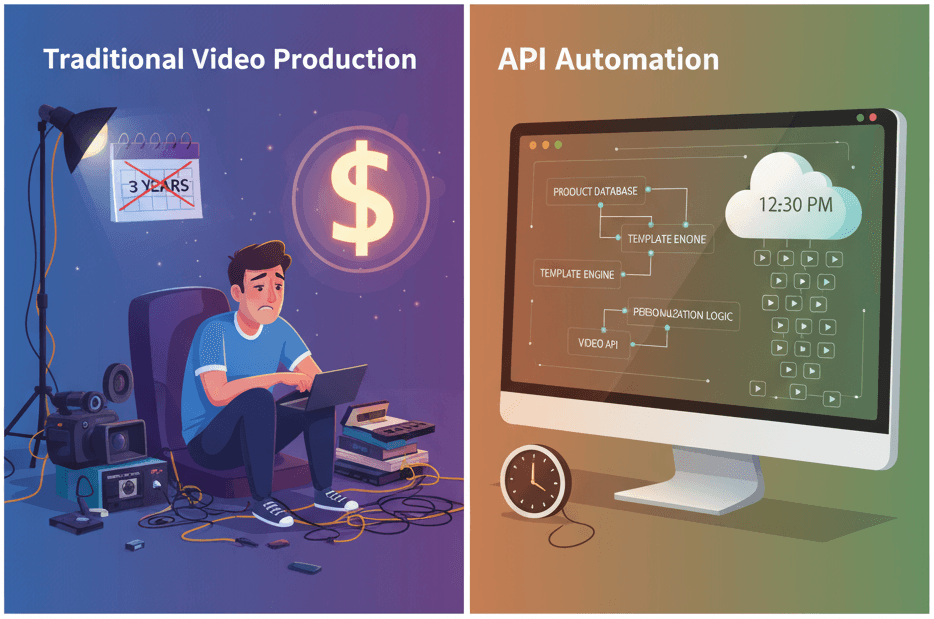
How to Generate 1,000+ Personalized Videos with API Automation (2026 Update)
A 30-second 1080p render costs $0.10 on a template API and $1.50+ on a generative one. Build the bulk pipeline: 1,000 personalized videos queued in under 20 minutes.
May 18, 2026