
How to Create Automated Videos with Make.com (Step-by-Step Guide)
Build a no-code Make.com video pipeline in 30 minutes. Make meters in credits now - 1 module run costs 1 credit, so a 5-module render scenario runs 5 per video.

Founder
Your marketing team needs 150 personalized product videos by Friday. Your sales team wants custom outreach clips for every new deal. And your onboarding flow just added a welcome video step that needs to work in 12 languages.
Make.com connects to thousands of apps and handles branching, loops, and multi-step logic on a visual canvas. Almost nobody points it at video rendering. That's a gap - and this guide fills it. In the next 30 minutes, you'll build a working Make.com scenario that turns data from any source into finished, rendered videos. No code. No editing software.
If you haven't read it yet, our complete guide to automating video creation covers the broader landscape. This tutorial gets specific: Make.com + Renderly, from zero to working pipeline.
Key Takeaways
- Make now bills in credits, not operations, at a 1:1 conversion with prices unchanged (Make help center)
- One standard module run costs 1 credit, so budget by scenario shape: a five-module render scenario spends 5 credits per video
- Make's free plan covers up to 1,000 credits/month; Core starts at $9 for 10,000 (Make pricing page, checked 2026-08-24)
- 91% of businesses use video as a marketing tool, back to an all-time high after dipping in 2025 (Wyzowl, 2026)
Why Use Make.com for Video Automation?
Make's billing unit changed, and it changes how you budget a video pipeline. Credits replaced operations, converted 1:1, with plan pricing untouched (Make). For standard non-AI apps the rule is simple: one module run costs one credit. That makes video automation cost easy to predict, because a render scenario is just a handful of modules firing once per video.
Three things make Make a good fit for video specifically.
Cost scales with scenario shape, not video length. Rendering is the expensive part, and Renderly bills that separately. On Make's side you're only paying for the modules that move data around. Trim a module and you cut the per-video cost across every render you'll ever run.
How much does that shape matter? Compare at a volume rather than at a headline price. A five-module scenario rendering 1,000 videos a month spends 5,000 Make credits, which fits inside Core at $9/month. The same pipeline on Zapier bills 4 tasks per video, because Zapier doesn't meter triggers at all, so 1,000 videos needs its 5,000-task tier at $133.50/month (Zapier, monthly billing, checked 2026-08-24). Roughly 15x, for identical output.
One caution on both vendors' pricing pages: they default to annual billing and show the discounted monthly equivalent. Zapier's Professional plan reads "$19.99/month" on the card but bills $29.99 month-to-month at the same 750-task minimum, a 33% annual discount. Pin the billing period before you quote either platform a budget.
Visual builder. Video workflows branch. Different data triggers different templates. Some renders go to email, others to Slack, others to a CMS. Make's scenario canvas handles this natively with Router modules and conditional paths. No nested if/else trees hidden behind UI tabs.
Webhook-native. Video rendering is asynchronous. You fire a request, wait for the render, then do something with the result. Make's webhook triggers handle this cleanly without polling or sleep modules, which matters for cost as much as elegance: a polling loop spends a credit every time it checks.
Note what the chart does not show: a tier-by-tier capacity ladder. Make prices by a credit slider that starts at 10,000 on every paid plan, so Core, Pro, and Teams all include the same credits at the same slider position and differ by features instead (Make). Comparing plans by included volume is meaningless here. Compare them by whether you need priority execution or team roles, and compare volume by sliding to the number you actually plan to render.
Already using Zapier instead? That works too - check out our Zapier video automation guide for the step-by-step.
What You'll Need Before Starting
Before we build anything, make sure you've got these ready:
- A Make.com account - The free tier (up to 1,000 credits/month) works fine for testing. Sign up at make.com
- A Renderly account with an API key - Grab yours from the Renderly dashboard at renderly.video. You'll need the API key from Settings → API Keys. New accounts start with 5 credits, enough to test the loop end to end
- A video template with dynamic variables - At least one template in Renderly with
isDynamicoverlays configured (that's how variables work - more on this in Step 1) - A data source - Google Sheets, Airtable, a CRM, a webhook, or any app that Make.com supports as a trigger
- Time: ~30 minutes
- Difficulty: Beginner - no code, no terminal, just clicking and mapping
If you don't have a template yet, Renderly's public system templates work out of the box. Pick one from the template gallery and note its ID.
Step 1: Set Up Your Renderly Template with Dynamic Variables
By the end of this step, you'll have a Renderly template with named, replaceable fields - the variables that Make.com will fill in automatically for each video.
Renderly's template system uses isDynamic overlays instead of placeholder syntax. Each overlay marked as dynamic becomes a variable. The overlay's name is the key you'll reference later in the API call.
Here's what that looks like in practice:
- Open the Renderly dashboard and navigate to your project or pick a system template
- Identify the overlays you want to personalize - text headlines, background images, product photos, names, logos
- Mark each one as dynamic by setting
isDynamic: truein the overlay settings - Note the exact
nameof each dynamic overlay - you'll need these names to match when mapping data in Make.com
For example, a product showcase template might have these dynamic variables:
{
  "replacements": {
    "product_name": "Default Product",
    "product_image": "https://example.com/default.jpg",
    "price": "$99"
  }
}Copy-paste these names directly. Case sensitivity trips up more people than anything else in this workflow - product_name won't match Product_Name.
Audit your text boxes before you batch. Many templates set
fontSizeFixed: trueon their text overlays, which means nothing auto-shrinks when your replacement value is longer than the default. We hit this building a batch of sale-ad variants: a 980x152px headline box at 132px type fits "OFF EVERYTHING" on one line, but "OFF ORDERS OVER $150" needs about 259px more and loses its second line entirely. The render still reported success. A silently clipped headline is the characteristic failure of any batch video workflow, so check your longest realistic value against your tightest box before you loop over 200 rows.
For a deeper look at how templates power video generation at scale, see our guide on generating thousands of personalized videos with API automation.
Step 2: Create a Make.com Scenario and Add Your Trigger
By the end of this step, you'll have a Make.com scenario with a trigger module that fires whenever new data arrives - ready to send that data to Renderly.
Your trigger is also your first credit. Every module that runs spends one, so the module count you settle on here sets the per-video floor for the whole pipeline.
- Log in to Make.com and click Create a new scenario
- Add your trigger module - this is the event that kicks off a video render. Common choices:
- Google Sheets → Watch New Rows - render a video for each new spreadsheet entry
- Airtable → Watch Records - trigger from a database view
- Webhook → Custom webhook - fire renders from any external system
- HubSpot / Salesforce → New Contact/Deal - personalized sales videos on demand
- Configure the trigger with your account credentials and select the specific sheet, table, or endpoint
- Run the trigger once to pull in sample data - Make.com needs this to show you available fields for mapping
Why does the trigger matter? Because it determines what data you can pipe into your video. A Google Sheets trigger with columns for name, company, and product_url gives you three variables to map to your Renderly template. The richer your data source, the more personalized your videos.
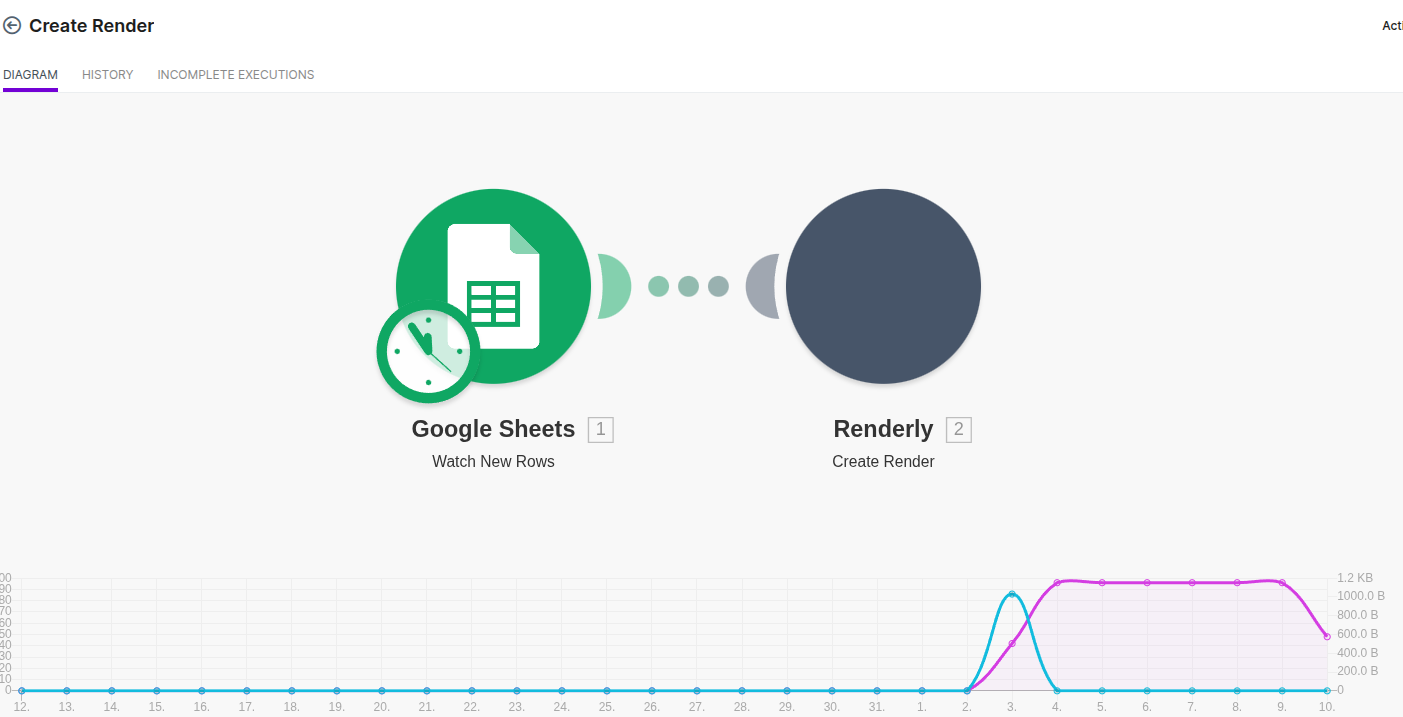
Make sure the sample data includes real values - not "test" or blank fields. You'll use these values to verify the full pipeline works end-to-end.
Step 3: Connect Renderly's API to Render Videos
By the end of this step, Make.com will send a render request to Renderly every time the trigger fires, with your template variables filled in from the trigger data.
This is the module that costs you money on both sides of the pipeline: one Make credit for the HTTP call, plus Renderly credits for the render itself. Renderly bills by output resolution, so a 1080p render is the 1x baseline, 2K costs 2x, and 4K costs 4x.
- Add an HTTP module to your scenario (Make.com → HTTP → Make a request)
- Configure the request:
- URL:
https://renderly.video/api/v1/renders - Method: POST
- Headers:
Authorization:Bearer YOUR_API_KEYContent-Type:application/json
- URL:
- Set the request body - this is where you map trigger data to template variables:
{
  "templateId": "your-template-id",
  "replacements": {
    "product_name": "{{Google Sheets: Column B}}",
    "product_image": "{{Google Sheets: Column C}}",
    "price": "{{Google Sheets: Column D}}"
  },
  "webhookUrl": "YOUR_MAKE_WEBHOOK_URL"
}- Map the dynamic values - click into each replacement field and select the corresponding data from your trigger module. Make.com shows a dropdown of all available fields from Step 2's sample data
- Toggle "Map" mode on the body field to switch between visual mapping and raw JSON - visual mapping is safer for beginners, but raw JSON gives you full control
The webhookUrl field is important. Instead of polling Renderly for render status, you'll point it to a Make.com webhook that fires when the video is done. We'll set that up in Step 4.
Don't reach for width and height to get a different aspect ratio. Those fields resize the output canvas; they do not re-lay-out the composition. We rendered a 9:16 variant at 1080x1350 to check, and the result was the 9:16 design with everything below 1350px cut off, including the footer. If you need a 4:5 feed cut, build it as its own template.
Tip from testing: Don't hardcode your API key in the body - put it in the Authorization header. We've seen users accidentally expose keys when sharing scenarios. The header keeps it in Make.com's credential store, which encrypts and hides it.
Run the scenario once. Check your Renderly dashboard - you should see a new render job in the queue. If it fails, double-check your variable names against the template (see Common Mistakes below).
Step 4: Handle the Finished Video with a Webhook
By the end of this step, you'll have a complete pipeline: trigger fires, video renders, and the finished file gets delivered wherever you need it - email, Slack, Google Drive, or your CMS.
Renderly's webhook-first architecture means you don't need to poll for status. When a render completes or fails, Renderly sends a POST request to your webhook URL with the video URL and metadata.
Here's how to wire it up:
- Create a second Make.com scenario (or add a branch to the first)
- Add a Webhooks → Custom webhook trigger as the first module
- Copy the webhook URL that Make.com generates
- Go back to Step 3 and paste this URL as the
webhookUrlvalue in your render request body - Add delivery modules after the webhook trigger:
- Gmail → Send an Email - attach or link the rendered video
- Slack → Send a Message - post the video URL to a channel
- Google Drive → Upload a File - archive the rendered file
- HTTP → Download a File first, then upload to any destination
The payload nests everything under a data object, which matters when you map fields in Make:
{
  "event": "render.completed",
  "data": {
    "jobId": "clx7a9b2c0001",
    "projectId": "clx4t7y1z0002",
    "status": "COMPLETED",
    "outputUrl": "https://cdn.renderly.video/renders/clx7a9b2c0001.mp4",
    "outputSize": 4718592,
    "durationInFrames": 600,
    "width": 1080,
    "height": 1920,
    "fps": 30,
    "creditsUsed": 1,
    "completedAt": "2026-08-24T09:14:22.104Z"
  },
  "timestamp": "1787529262"
}Two details trip people up. status is uppercase (COMPLETED or FAILED), not lowercase. And the download link is outputUrl, not videoUrl - map data.outputUrl in your delivery module.
Know what a one-off webhookUrl does and doesn't give you. It's the right ergonomic choice for Make, because a Custom webhook accepts any POST and doesn't verify signatures anyway. But be clear-eyed about the tradeoffs: the callback carries no deliveryId, so there's no idempotency key to deduplicate on, and its signature header is generated from a constant rather than a per-endpoint secret, so it authenticates nothing. Delivery is 3 attempts over roughly 3 seconds. A one-minute outage on your Make webhook loses the event permanently. If you need signature verification, register a real endpoint with POST /api/v1/webhooks and verify the HMAC against your own whsec_ secret instead.
Add a reconciliation pass. Because retries are effectively instant, the honest pattern is a scheduled scenario that lists recent renders and catches anything your webhook missed. Log every jobId you fire in Step 3 to a sheet, then sweep for rows with no completion.
Failed renders return their credits automatically. You don't need a compensating branch for billing. Renderly refunds a failed render's credits exactly once, guarded by a dedicated marker column so two writers can't double-refund. An hourly sweep also catches renders whose worker died without reporting: anything stuck without progress for two hours gets marked failed and refunded. Your FAILED branch should notify a human and log the errorMessage, not adjust balances.
Test the full loop. Add a new row to your Google Sheet and watch the pipeline execute: data flows to Renderly, the video renders, the webhook fires, and the finished video lands in your inbox or Slack channel.
91% of businesses use video as a marketing tool, back to a joint all-time high after a slight dip in 2025 (Wyzowl, 2026). With this pipeline running, you're producing those videos on autopilot.
Common Mistakes to Avoid
The single most frequent failure point - by a wide margin - is mismatched variable names between your Renderly template and the Make.com request body. Here's what trips people up:
1. Case-sensitive variable names. headline and Headline are different keys in the replacements object. Make.com won't warn you about this. Copy-paste directly from your template's replacements - don't retype them.
2. Authorization header format. The API key must go in the Authorization header as Bearer YOUR_KEY - not as a query parameter, not in the request body. If you get 401 errors, this is almost always why.
3. Mapping the wrong payload fields. The webhook body nests under data, status is uppercase, and the file lives at outputUrl. Mapping videoUrl or testing status = "completed" gives you a scenario that runs clean and delivers nothing.
4. Budgeting credits per scenario instead of per row. Make's free plan allows up to 1,000 credits/month, and a standard module run costs 1 credit. A five-module scenario spends 5 credits per video, so you'll hit the free ceiling around 200 renders. The trap is the Iterator: looping 200 rows through four downstream modules spends 800 credits in a single scenario run, not 4.
5. Assuming text shrinks to fit. Templates with fixed-size type clip long values instead of resizing, and the render still succeeds. Check your longest realistic replacement value against your tightest text box before batching.
6. Forgetting the Content-Type header. The render API expects Content-Type: application/json. Without it, the request body won't parse correctly and you'll get a 400 error with a confusing message.
What to Build Next
You've got a working pipeline. Now make it smarter. Here are three natural next steps:
Add conditional routing. Use Make.com's Router module to send different data to different templates based on conditions - product category, customer segment, language, deal stage. One scenario, multiple video outputs. Budget for it: each active branch module is another credit per video.
Batch from a spreadsheet. Connect Google Sheets or Airtable as your trigger with the Iterator module, and render a video for every row in a batch. Need 500 product videos? Upload a CSV, and they'll all be in your inbox by morning - just size your credit balance for 500 times your module count.
Track render status. Build a simple dashboard by logging webhook payloads to a Google Sheet - jobId, status, creditsUsed, timestamp. That doubles as the reconciliation log from Step 4 and gives you a real-time view of production volume and costs.
For the bigger picture on video automation architectures, revisit our complete automation guide. And if you want to compare Make.com against other approaches, our video API comparison breaks down the options.
You just built a complete no-code video automation pipeline. Data goes in, finished videos come out - personalized, rendered, and delivered without anyone touching an editor.
Make.com connects to most systems your team already uses. And Renderly's credit-based pricing means you're only paying for what you render - no monthly minimums, no per-seat fees.
Get started with Renderly and build your first Make.com video workflow today.
Frequently asked
How much does Make.com cost for video automation?
Does Make.com still use operations, or credits?
Can I use Make.com's free plan for video automation?
How long does each video render take?
What's the difference between Make.com and Zapier for video automation?
Can I batch-render hundreds of videos at once?
Related Articles
The Complete Guide to Automating Video Creation in 2026
Automate video creation in 2026 with templates, APIs, and AI agents. An expert production company charges about $1,000/min; a template render, $0.10-0.20.
July 28, 2026
How to Automate Video Creation with Zapier (Step-by-Step Guide)
Automate video creation with Zapier and Renderly across 9,000+ apps. Two Zapier tasks per video, credits refunded on failure — the full build plus the real cost math.
August 18, 2026
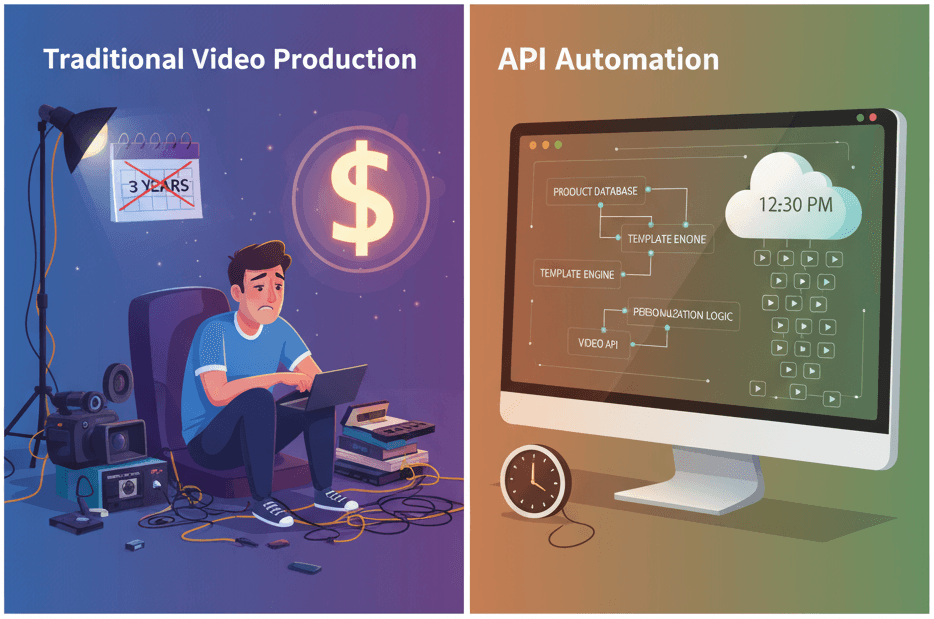
How to Generate 1,000+ Personalized Videos with API Automation (2026 Update)
A 30-second 1080p render costs $0.10 on a template API and $1.50+ on a generative one. Build the bulk pipeline: 1,000 personalized videos queued in under 20 minutes.
May 18, 2026
4 Best Video APIs for Developers (2026 Mid-Year Update)
We compared Renderly, Shotstack, Creatomate, and JSON2Video on price, speed, and DX. Subscription costs run $0.10 to $0.84 per minute at 1080p.
June 8, 2026

Video API vs Traditional Video Production: 2026 Cost Comparison
Agency video runs $1,000–7,000 per finished minute (Synthesia, 2025). Template APIs render the same minute for $0.10–0.20. The real cost math, tier by tier.
August 5, 2026