
Free Black Friday Product Video for Shopify
Paste a Shopify product link, pick the Black Friday style and download a free 15-second vertical sale video with the old price crossed out. No account needed.

Founder
To make a free Black Friday video for a Shopify product, set your sale price in Shopify, paste the product link into our free Shopify product video maker and pick the Black Friday style. You get a 15-second vertical MP4 with music and the old price crossed out. No account, no email, no card.
Black Friday is Friday, November 27, 2026, and Cyber Monday is November 30. Most stores will have their sale prices ready and no video to show them, because a video for every product on sale means a shoot or an editor. Your product page already holds what a sale video needs: a name, a sale price, the old price and some photos.
This post covers the steps, the one Shopify setting that makes the crossed-out price appear, when to post, and where the video goes. If you only want the video, go straight to the tool.
Key Takeaways
- Paste a Shopify product link, pick Black Friday, and download a free 15-second 1080x1920 MP4 with music. No account needed.
- Set the sale price and the compare-at price in Shopify first. The video shows the old price crossed out only when the compare-at price is higher.
- In 2026, Adobe expects $47.5 billion in US online sales over Cyber Week, and a record 63% of holiday spend on mobile, so make the video vertical.
How do you make a Black Friday video for a Shopify product?
Put the sale price live in Shopify, paste the product link into the free tool, pick Black Friday and download the MP4. The whole flow is at /tools/shopify-product-video. The video is 1080x1920, 15 seconds long, with music, and you see it play in your browser before you render.
- Set the sale price in Shopify. In the product, put the Black Friday price in Price and the old price in Compare-at price. This is the step most people skip (see the next section).
- Copy the product link. Open the product in your online store, not in the admin, and copy the address. It looks like
yourstore.com/products/linen-shirt. - Paste it and pick Black Friday. The tool fills in the product name, both prices and three photos, and plays a live preview.
- Check the text, then press Render. Fix anything the preview shows, render, and download the MP4.
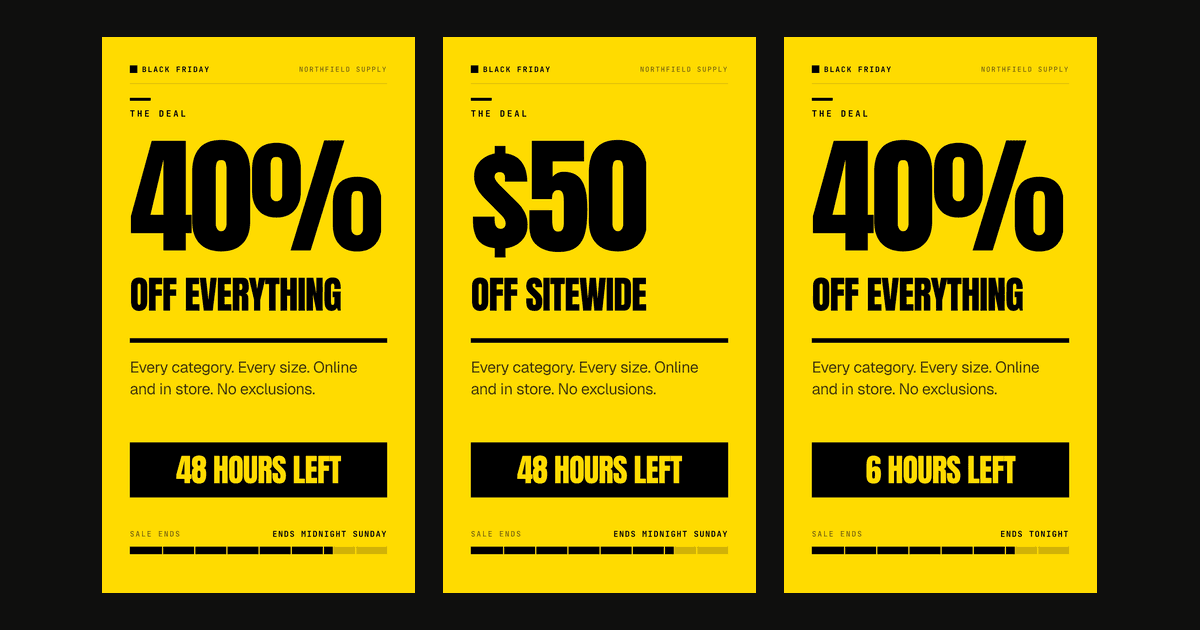
The style opens on a line of light, with "Black Friday" in silver serif type. Your three photos then step through on warm-white cards, uncropped, so the product stays sharp. The last scene is the sale: "Now", your price, the old price crossed out in red, your store address and a Shop now button. One red accent, a deep-house music bed and no flashing countdown, so it looks like a brand's sale, not a discount bin.
Not running a sale on this product? Leave the old price empty. The end card then shows one price and still looks complete.
The setting that makes the old price appear
The tool crosses out the old price only when the product has a compare-at price above its price. In Shopify, the compare-at price is the field that marks a product as on sale. No compare-at price, no strikethrough. The video then shows one price, which is a weak sale video.
So the order matters. Do you schedule your Black Friday prices to go live on the day? Then the link still shows the full price when you make the video. In that case, type the sale price and the old price into the form by hand. The preview follows as you type, and the field counters warn you before a price runs past what the style can fit.
The tool also keeps your store's own price format. $1,299.00 stays $1,299.00 and €1.299,00 stays €1.299,00, so a European store does not get a dollar-style price.
Pick your strongest photos
The style uses the first three photos on the product, and the first one carries the opening shot. Square or portrait photos work best. A product with one photo still makes a full video, because the tool reuses the first photo when there are fewer than three. If a variant is the one on sale, paste the link with ?variant= in it. That variant's photo then goes first.
When should you post a Black Friday video?
Post it before the sale starts, again on the day, and once more before Cyber Monday ends. In 2026, Adobe forecasts Black Friday at $12.9 billion in US online sales and Cyber Monday (November 30) at $15.1 billion, the biggest day of the season (Adobe, US holiday shopping forecast, September 2026). Adobe puts the five days from Thanksgiving to Cyber Monday at $47.5 billion.
| When | Date in 2026 | What to post |
|---|---|---|
| Sale announced | the week of November 23 | The video with the sale price, and the sale start date in the caption |
| Thanksgiving evening | Thursday, November 26 | The same video, "starts tomorrow" |
| Black Friday | Friday, November 27 | The video on the product page, in Stories and as a Reel |
| The weekend | November 28-29 | A second product, or the bestseller again |
| Cyber Monday | Monday, November 30 | "Last day", with the deadline in the caption |
Why the caption and not the video? Because the video stays correct all week. Put the dates and "last day" in the text of each post, and one video per product covers all five days.
Then take it down. A sale video is wrong the moment the sale ends: it shows a price you no longer charge. On December 1, put the full price back in Shopify, remove the compare-at price, and make a second video in a style without the sale. That one can stay on the product page all year.
Where does the video go?
The same file works on your product page, on Reels, TikTok and Shorts, and in your Google Shopping feed. It is 9:16, 1080x1920 and 15 seconds long, the full-screen vertical shape that phones play. That matters on Black Friday: Adobe expects a record 63% of US online holiday spend in 2026 to come through mobile devices, up from 61.6% in 2025.
On the product page
Upload the MP4 in the product's Media section in your Shopify admin, the same place as your photos. Keep a photo in first place and put the video second. Shopify shows the first media item on collection pages, the cart and checkout, so your product grid keeps a clean photo. Your theme must support video. Our guide to the free Shopify product video has the full upload steps, Shopify's file limits and the theme checks.
On Reels, TikTok and Shorts
Upload it as it is, with no crop. Salesforce predicts that social commerce "will be the fastest-growing transaction channel this holiday season", growing "at 9x the rate of traditional ecommerce" (Salesforce, 2026 holiday retail predictions, July 2026). In Stories, add a link sticker to the product page on top of the last scene, where your store address already shows.
In Google Shopping
Google Merchant Center has a video_link attribute for product videos in your feed. Google's help page says that "Starting June 30, 2026 videos submitted via the" attribute "will become eligible to serve" (Google Merchant Center Help, "Merchant Center product data specification update 2026"). Our e-commerce product video guide covers how to add it. Host the MP4 yourself first: the download link from the free tool lasts 7 days, and a feed needs a link that does not expire.
What does "free" mean here?
No account, no email, no credit card, and nothing over your product. The video ends with a small "Made with renderly.video" credit in its last scene. Free renders have a daily limit, and when it runs out, the tool offers a free account instead.
The free render goes onto the same render queue as a paid one, on the same servers. Our first production render of the Black Friday style, on November 7, 2026, finished in 31 seconds. Earlier tests of the other styles took 52 to 68 seconds from Render to download. The tool reads data that a store already publishes, so it works on any store's link. Please make videos only of products you have the right to promote.
What if every product in the sale needs a video?
With a free account, the same 15-second video costs 0.25 credit, because Renderly bills renders by the second. Every new account gets 5 credits, which is about 20 of these videos. That is enough for the products in a small Black Friday sale.
For a bigger sale, the Renderly API or the Zapier integration renders one video per product from your catalog, with each product's own sale price and photos. Our guide to batch-rendering ad variants shows the pattern, and pricing lists the credit packs.
Wrapping up
- Set the sale price and a higher compare-at price in Shopify, so the video shows the old price crossed out.
- Paste the product link into the free Shopify product video maker, pick Black Friday and download a 15-second MP4. No account needed.
- Post it before the sale, on Black Friday and before Cyber Monday ends on November 30, and put the dates in the caption.
- On December 1, swap it for a video without the sale.
Start with your best-selling product on sale. It has the best photos, and it is the one where a video earns the most.
Renderly is not affiliated with, endorsed by or sponsored by Shopify. Shopify is a trademark of Shopify Inc.
Sources
- Adobe, US holiday shopping season forecast (press release), September 28, 2026, retrieved 2026-11-07, https://news.adobe.com/news/2026/09/adobe-us-holiday-shopping-season-to-hit-record
- Salesforce, 2026 holiday retail predictions, July 20, 2026, retrieved 2026-11-07, https://www.salesforce.com/blog/holiday-retail-predictions-2026/
- Google Merchant Center Help, Merchant Center product data specification update 2026, retrieved 2026-11-07, https://support.google.com/merchants/answer/16989427
- Renderly production measurements, 2026-10-25 and 2026-11-07
Frequently asked
How do I make a free Black Friday video for a Shopify product?
Why does my video not show the old price crossed out?
When is Black Friday 2026?
Can I use the same video on Instagram Reels and TikTok?
How do I make a sale video for every product on sale?
Related Articles
How to Make a Free Shopify Product Video From a Link
Paste a Shopify product link, pick one of six styles and download a free 15-second vertical video with music. No account. Then add it to your product page.
October 27, 2026
E-commerce Product Video Automation by API
Google Merchant Center now serves product videos from a video_link feed attribute. Here's how a video API renders one video per SKU from your catalog.
June 20, 2026
Social Media Video Automation: Batch-Render Ad Variants
TikTok suggests 3-5 creatives per ad group across 3-5 ad groups, so up to 25 videos. We rendered variants of one 9:16 template in 13 to 19 seconds each.
August 20, 2026