
How to Make a Free Shopify Product Video From a Link
Paste a Shopify product link, pick one of three styles and download a free 15-second vertical video with music. No account. Then add it to your product page.

Founder
To make a free Shopify product video, paste your product link into our free Shopify product video maker, pick a style and download a 15-second vertical MP4 with music. No account, no email, no card. In our production tests, a render took 52 to 68 seconds.
Most Shopify stores have product photos and no product video, and the reason is time. A product video means a shoot, a freelancer or an evening in an editor, for every product. But your product page already holds everything a short video needs: a name, a price and some photos. The tool turns those into the video.
This post walks through the three steps, what the tool reads from your product page, what "free" means, and how to put the finished video on the product page in Shopify. If you only want the video, go straight to the tool.
Key Takeaways
- Paste a Shopify product link into the free tool and download a 15-second 1080x1920 MP4 with music, in one of three styles. No account needed.
- On production, each render took 52 to 68 seconds, and every file was under 6 MB.
- The file fits Shopify's product media limits as it is: MP4, MOV or WEBM up to 1 GB and 10 minutes (Shopify Help Center, 2026).
- Put the video second, after a photo. Shopify shows the first media item on collection pages, the cart and checkout.
How do you make a free Shopify product video?
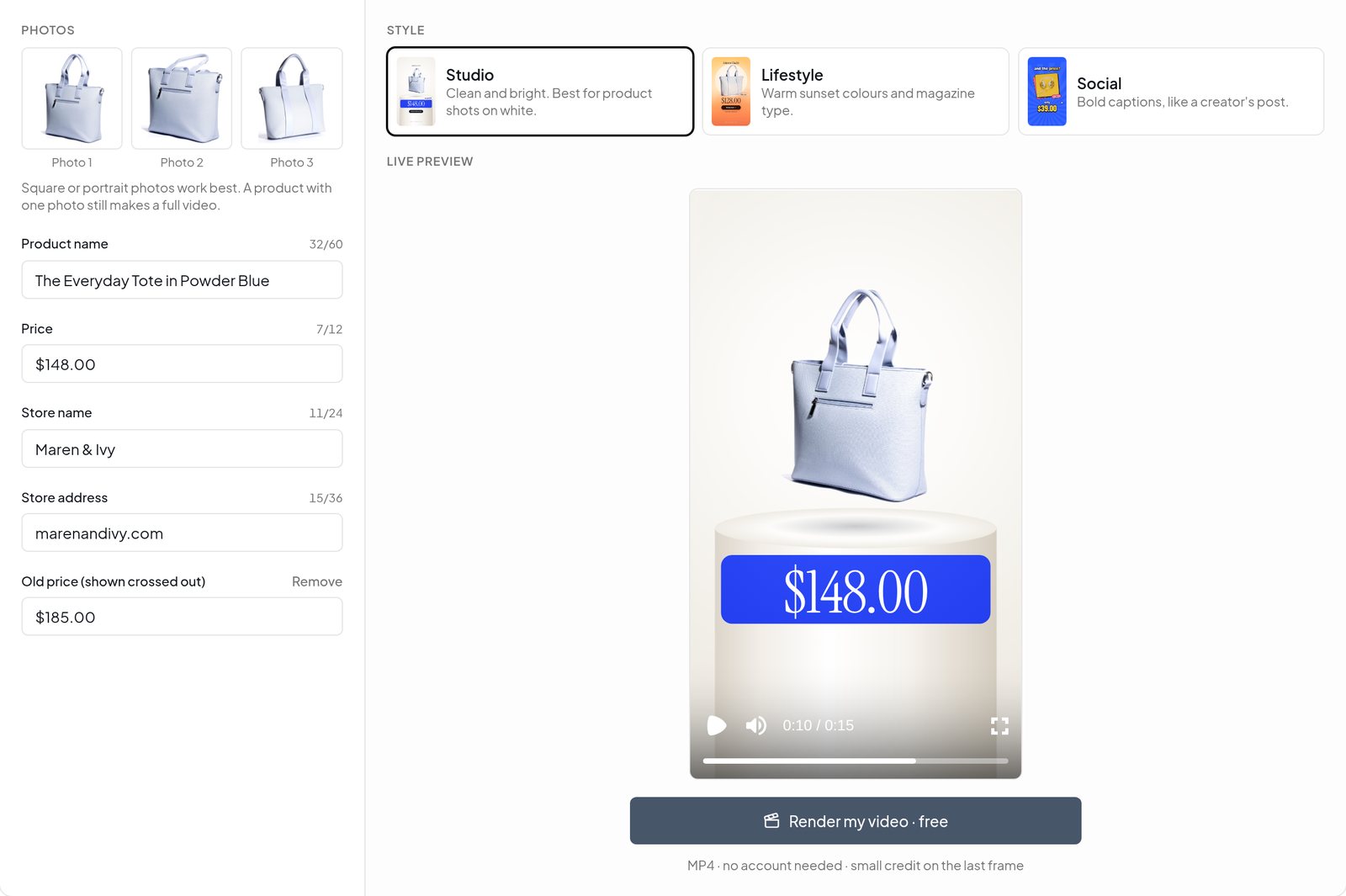
Copy your product link, paste it into the free tool, pick a style and download the MP4. That is the whole flow at /tools/shopify-product-video. The video is 1080x1920, 15 seconds long and comes with music, and you see it play in your browser before you render anything.
- Copy the product link. Open the product in your online store, not in the Shopify admin, and copy the address. It looks like
yourstore.com/products/linen-shirt. A link from a collection page, or one that ends in?variant=, works too. - Paste it and pick a style. The tool fills in the product name, the price and three photos, and plays a live preview. Choose Studio, Lifestyle or Social.
- Check the text, then press Render. Fix anything the preview shows, render, and download the MP4.
What the tool takes from your product page
The tool reads the product page you paste and fills in the video:
- The product name, from the product's title.
- The price, in your store's own format. The tool uses the store's currency format, so $1,299.00 stays $1,299.00 and €1.299,00 stays €1.299,00.
- The old price, crossed out, but only when the product has a compare-at price above the price. No sale, no strikethrough.
- Three photos, the first three on the product. If your link names a variant, that variant's photo goes first.
- Your store name and address in the last scene, so a viewer knows where to buy.
Every field stays editable, and the preview follows as you type. Each field also has a counter that warns you before the text runs past what the style can fit. Why does that matter? A template renders overflowing text without complaint, and a cut-off product name is the most common way an automatic video comes out wrong.
Three styles, one product
You choose the look before you render. Each style takes the same product data, so switching keeps your product and your edits.
A few things make the result better. Square or portrait photos work best, and product shots on a white background look cleanest in Studio. A product with one photo still makes a full video, because each photo slot uses its own framing and the tool reuses the first photo when there are fewer than three.
Your browser reads the product, not our server
Shopify stores publish a public copy of each product page as data, and they let other sites read it. That is how the tool gets your product without a login or an app install. We first tried to read it from our own servers. In our tests on October 24, 2026, a large Shopify store answered our server with HTTP 429, "too many requests". The same request from a home connection came back at once.
So the tool reads the product in your browser instead. Our server never visits the link you paste, and your photos upload only when you press Render. Before the upload, your browser shrinks each photo so its longest side is at most 1080 pixels, which is all a 1080-pixel-wide video can use.
Some stores don't share that data. Stores with a custom front end, or with a password page, block the read. The tool then says so and asks you for the photos and the text by hand, which takes about a minute. No link at all? The same by-hand mode is one click from the start, so the tool also works for products you sell somewhere other than Shopify.
What does "free" mean here?
No account, no email, no credit card, and nothing over your product. The video ends with a small "Made with renderly.video" credit in its last scene, for the final 4 to 6 seconds. That credit is how a tool that costs us a real render pays for itself. Free renders have a daily limit, and when it runs out, the tool offers a free account instead.
What happens when you press Render? The same thing that happens for a paying customer. The job goes onto the same render queue, renders on the same servers, from the same template system. It waits behind paid work on a busy day, and that is the only difference.
We rendered one video in each style on production on October 25, 2026, with a real store's sale product. From pressing Render to the download link took 54 seconds for Studio, 68 seconds for Lifestyle and 52 seconds for Social. All three files were 1080x1920 at 30 frames per second, 15.06 seconds long, and between 3.5 and 5.3 MB.
The download link lasts 7 days. The tool reads data that a store already publishes, so it works on any store's link, but please make videos only of products you have the right to promote.
How do you add the video to your Shopify product page?
Upload the MP4 in the product's Media section, the same place as your photos. In 2026, Shopify product media can be images, 3D models or videos, and a video can be an uploaded file or a YouTube or Vimeo link (Shopify Help Center, Product media types). The file from the free tool sits far inside every limit for an uploaded video:
| Requirement | Shopify's limit for an uploaded video | The free tool's video |
|---|---|---|
| Length | Up to 10 minutes | 15 seconds |
| File size | Up to 1 GB | 3.5 to 5.3 MB in our tests |
| Resolution | Up to 4K (4096 x 2160 px) | 1080 x 1920 |
| File type | .mp4, .mov or .webm | .mp4 |
| Media per product | Up to 250 images, 3D models or videos | 1 video |
Shopify serves every product video as MP4 or HLS, and converts .mov and .webm uploads to do so. In browsers that support streaming, a video plays at 480p, 720p or 1080p. A YouTube or Vimeo link skips the upload limits entirely. Shopify says embeds "don't need to meet these requirements", and that no other video hosts are supported. So file size is never the problem. The theme is.
The upload steps
These are Shopify's own steps for the desktop admin, from its help center article on adding product media, retrieved 2026-10-27:
- From your Shopify admin, go to Products.
- Click the product that you want to edit.
- In the Media section, click Upload new and select the MP4. You can also drag the file onto the section.
- Drag the video to the place in the media list where you want it.
Four details that decide how it looks
Check that your theme supports video. Shopify's help center is plain about it: "To display videos or 3D models on product pages, your online store needs to use a theme that supports the media that you want to add." All of Shopify's own Online Store 2.0 themes and the Horizon themes support video. An older third-party theme may need an update before a video shows at all.
Keep a photo in first place. Shopify's wording: "The first media item for each product is known as the featured, or main, media item." It shows that item on collection pages, the cart page, checkout and your home page. Put the video second, so the product grid still shows a clean photo and the product page gets the video.
Turn on looping if your theme has it. Shopify's free Dawn theme has a Loop video setting in its product section, and it is off by default. With looping off, the video stops on its last frame after one play.
Check the page on a phone. A vertical video in a gallery of square photos sits differently in every theme. Open the product on your phone before you share the link. And if a video uploads with no thumbnail, Shopify's cause is that "the file extension doesn't match the file's actual format", for example a .mov file renamed to .mp4.
Where else does the same video work?
The file is 9:16, 1080x1920 and 15 seconds long, the full-screen vertical shape that Reels, TikTok and YouTube Shorts play. So the video you made for the product page uploads to all three without a crop. One product link gives you a product page video and a week of short posts.
- Reels, TikTok and Shorts. Upload it as it is. If you want to post one product a day without doing it by hand, see how to automate Instagram Reels and how to automate TikTok videos.
- Stories. Add a link sticker to the product page on top of the last scene, where the store address already shows.
- Ads. Use it as a vertical ad to test a product before you pay for a shoot. A test that loses costs one free render.
- Google Shopping. Google Merchant Center can now show product videos from your product feed. Our guide to e-commerce product video automation covers the
video_linkattribute. Google wants a link that does not expire, so host the MP4 yourself first.
That last point applies everywhere: save the file. The download link from the free tool lasts 7 days.
What if you need a video for every product?
With a free account, the same 15-second video costs 0.25 credit, because Renderly bills renders by the second. Every new account gets 5 credits, which is about 20 of these videos. That is enough to test the idea across a whole collection before you spend anything.
An account adds three things the free tool cannot do:
- The editor. The same video opens with every layer, font, colour and timing editable, and the project is kept for the next product.
- One video per product, without the form. The Renderly API or the Zapier integration renders a video for each product in a feed. Our e-commerce product video guide maps Shopify's product fields to template variables step by step.
- Every other template, for launches, promos and social posts. See pricing for credit packs and plans.
And if plain packshots are all you have? The AI version starts from one product photo and generates new scenes of the product in use, with the same shape, colour and logo. Each AI clip costs real money to make, so it is not part of the free tool. Send a request from the tool page and we make your first one free. The AI product video post shows how it works by API.
Wrapping up
- To make the video, paste your product link into the free Shopify product video maker, pick Studio, Lifestyle or Social, and download a 15-second MP4. No account needed.
- The file fits Shopify's product media limits as it is. Upload it in the product's Media section.
- Your theme has to support video. Shopify's own Online Store 2.0 and Horizon themes do.
- Keep a photo first, because the first media item shows on collection pages, the cart and checkout.
The video you make for the product page also works on Reels, TikTok and Shorts as it is. Try it with your best-selling product first. It is the one with the best photos, and the one where a video earns the most.
Renderly is not affiliated with, endorsed by or sponsored by Shopify. Shopify is a trademark of Shopify Inc.
Sources
- Shopify Help Center, Product media types, retrieved 2026-10-27, https://help.shopify.com/en/manual/products/product-media/product-media-types
- Shopify Help Center, Adding product media, retrieved 2026-10-27, https://help.shopify.com/en/manual/products/product-media/add-media
- Shopify, Dawn theme source,
sections/main-product.liquid, settingenable_video_looping(label "Loop video", default off), retrieved 2026-10-27 - Renderly production measurements, 2026-10-24 and 2026-10-25
Frequently asked
How do I make a free Shopify product video?
Does the free tool work with every Shopify store?
How do I add a video to a Shopify product?
What video size and format does Shopify accept for product media?
Why does my product video not show in my Shopify store?
How much does a product video cost with a Renderly account?
Related Articles
E-commerce Product Video Automation by API
Google Merchant Center now serves product videos from a video_link feed attribute. Here's how a video API renders one video per SKU from your catalog.
June 20, 2026
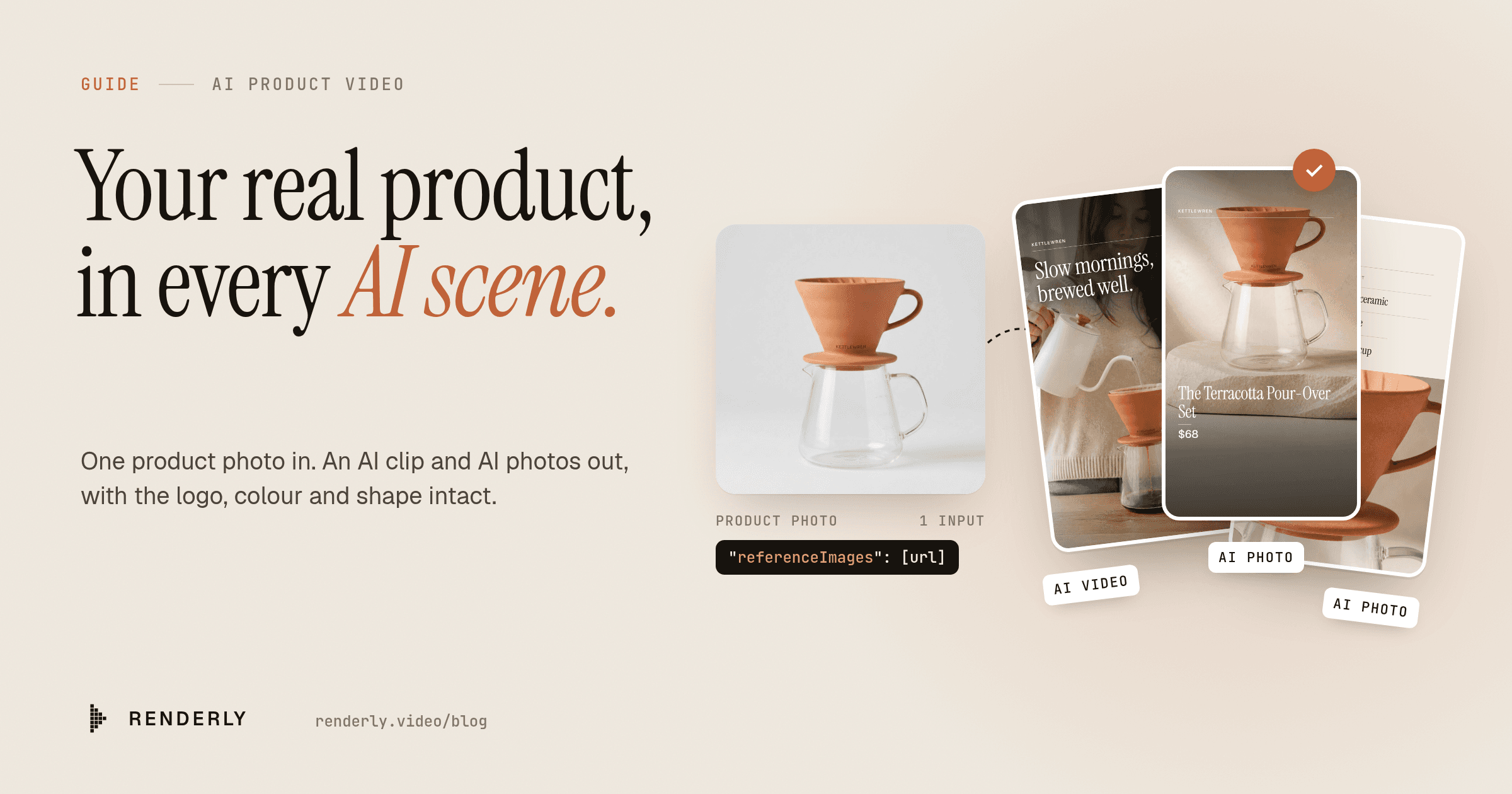
AI Product Videos That Show Your Real Product
Send one product photo and Renderly generates an AI clip and AI photos that keep your real product, then renders a finished ad. About 8.4 credits per product.
October 22, 2026
Product Hunt Launch Assets: The Checklist for Launch Day
Every Product Hunt launch asset, in the order to make it. Only 53% of Product of the Day winners had a video, and ours renders free in about 40 seconds.
September 8, 2026