
Renderly Now Renders Motion Graphics From JSON
Keyframe tracks, scene groups, motion blur and beat sync are live in the Renderly API. What shipped, a 3-step tutorial, and the first motion template.

Founder
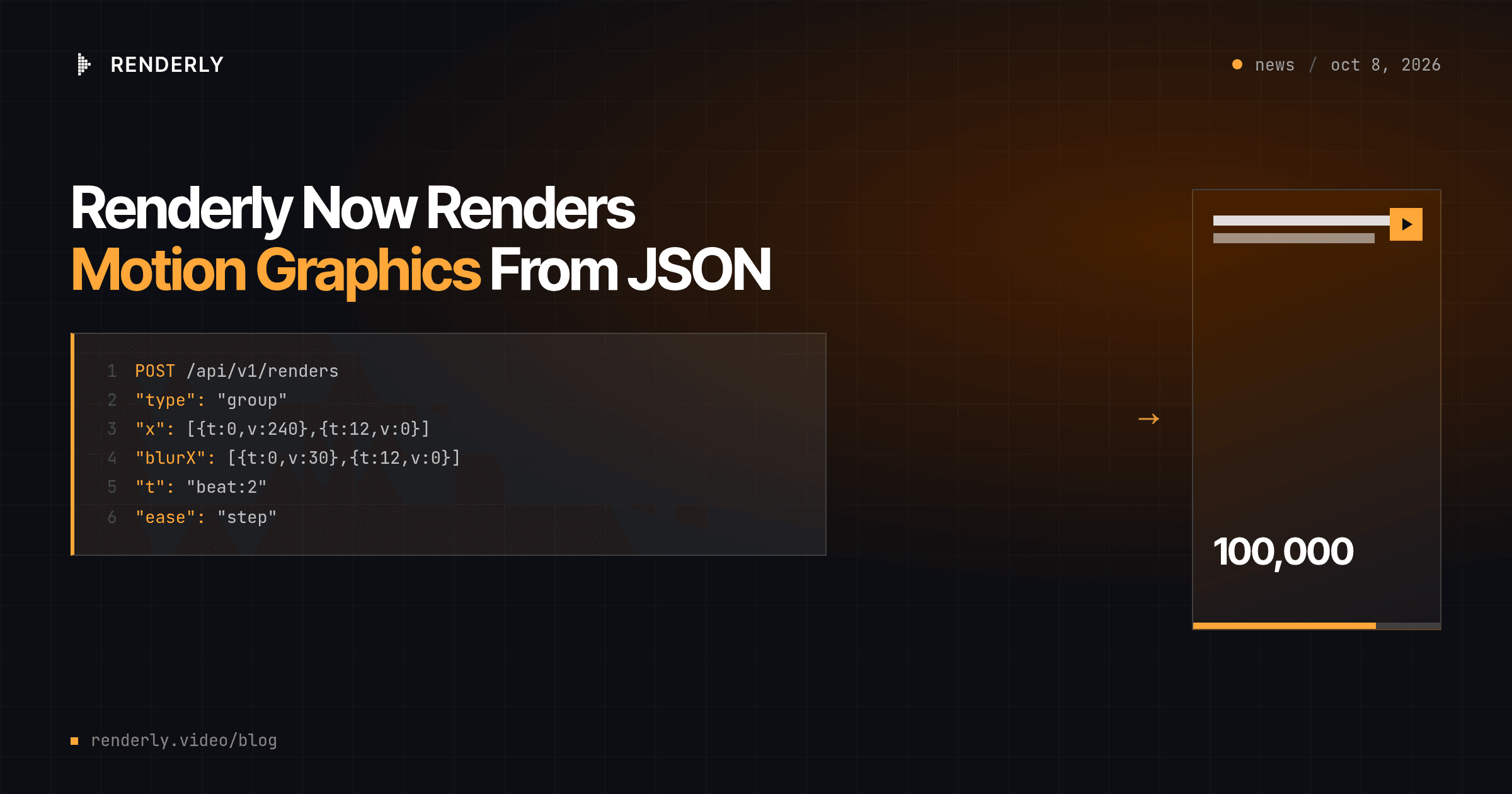
Renderly can now render motion graphics from plain JSON. Every overlay takes
keyframe tracks, a new group overlay moves a whole scene as one layer,
and a beat grid pins moves to your music. Camera push-ins, whip
transitions with motion blur, counters that tick up, wipes and hits on the
beat - all of it is part of the request body you already send to
POST /api/v1/renders. Nothing to install, and no new endpoint.
This 15-second launch reel is the first template built with it. Every move in it is overlay JSON, and you can open that JSON and copy from it.
Key Takeaways
- Every overlay now takes
motion.tracks: 19 animatable properties, fromxandscaletoblurXmotion blur andclipPathwipes, with GSAP-style easing andstepkeys for hard cuts.type: "group"holds other overlays. Moving the group moves the scene - that is your camera.- A top-level
beatGridlets keys say"beat:12"instead of a frame number.- Credits do not change: a 15-second motion video is still 0.5 credits. Dense motion renders more slowly - about 1.8× a typical template.
- The Product Launch Motion Reel is live in the gallery, and its full JSON is public as a reference.
What's in the release?
Until now, an overlay had one enter animation, one exit animation and one loop, picked from preset libraries. That covers a lot of templates. It does not cover motion design, where the craft is in timing: a title that lands on the drop, a scene that whips out as the next whips in, a counter that steps on every beat.
Five additions close that gap. All of them are optional, and an overlay without them renders exactly as it did before.
| Field | Where | What it does |
|---|---|---|
motion.tracks | any overlay | Keyframes on the layer box: move, scale, rotate in 2D and 3D, skew, fade, blur, motion blur, brightness, contrast, saturation, clip-path |
motion.content | text overlays | Replaces the text at each key - counters, typing, status changes |
layerStyle | any overlay | Static box CSS: gradients, borders, shadows, masks, blend modes |
type: "group" | new overlay type | A container. Children are positioned and timed relative to it |
beatGrid | top of inputProps | { bpm, offsetSec }, so keys can be placed on beats |
The full field reference, with every track and its unit, is in the overlays reference. The OpenAPI spec has the schemas.
What does a motion template look like?
The launch reel above has 5 scenes. Each scene is one full-frame group, so every layer inside it is timed from the scene start. Inside, there are 135 overlays: 59 groups, 48 text layers, 25 images, a video clip and 2 sound tracks (the music and a mixed sound-effect bed). They carry 144 keyframe tracks with 553 keys between them. Every scene cut lands on a beat of the 125 BPM music, and every hit and sound effect is placed on the same beat grid.
You can render it with your own brand on the end card:
POST https://renderly.video/api/v1/renders
Authorization: Bearer rnd_...

{
  "templateId": "renderly-launch-15s",
  "replacements": {
    "brand_name": "Northwind",
    "headline": "Videos for every customer.",
    "cta_url": "northwind.io/launch"
  }
}The middle of the reel is about Renderly, so treat this one as a reference
more than a drop-in template. Open the
template JSON
and find the move you want. The first two scenes put their layers in a
camera group that moves them together: the push-in is a scale track on
the camera in scene-01, and the shake on the drop is step keys on the
camera in scene-02. The tile wall is the wall group in scene-03, with
24 tile groups inside it that drift and scale as one. The counters use
motion.content.
How do you build a motion scene in three steps?
Here is a smaller scene, built up one idea at a time: a headline that whips in with a motion blur, a counter that ticks up, and a chip that hits on a beat, all inside a slow camera push-in.
Step 1: a scene group with a camera push-in
A group is an overlay with children. Give it the full frame and a scale
track from 1 to 1.05 across the scene, and every child drifts toward the
viewer together. The layerStyle background paints the scene's gradient.
{
  "id": 1, "type": "group", "name": "scene-1",
  "from": 0, "durationInFrames": 90,
  "row": 1, "top": 0, "left": 0, "width": 1920, "height": 1080,
  "layerStyle": { "background": "radial-gradient(circle at 30% 25%, #2a1f5c, #0a0a0a 65%)" },
  "motion": { "tracks": { "scale": [{ "t": 0, "v": 1 }, { "t": 90, "v": 1.05, "ease": "sine.inOut" }] } },
  "children": []
}Key times (t) are frames from the overlay's own start. Between two keys,
the value follows the later key's ease - here, a gentle sine.inOut.
Step 2: a headline that whips in
Three tracks on the same 12 frames make the whip: x slides the headline
240 px into place, blurX smears it horizontally while it moves, and
opacity fades it up over the first 4 frames. The expo.out ease makes it
fast at the start and soft at the end, which is what sells the speed.
{
  "id": 2, "type": "text", "name": "headline", "isDynamic": true,
  "content": "Launch day",
  "from": 0, "durationInFrames": 90,
  "row": 0, "top": 360, "left": 160, "width": 1600, "height": 200,
  "styles": { "fontFamily": "Inter", "fontSize": "150px", "fontSizeFixed": true, "fontWeight": "800", "color": "#FFFFFF", "textAlign": "left", "lineHeight": 1 },
  "motion": {
    "tracks": {
      "x": [{ "t": 0, "v": 240 }, { "t": 12, "v": 0, "ease": "expo.out" }],
      "opacity": [{ "t": 0, "v": 0 }, { "t": 4, "v": 1 }],
      "blurX": [{ "t": 0, "v": 30 }, { "t": 12, "v": 0, "ease": "expo.out" }]
    }
  }
}End every blur track at 0. Blur is one of the most expensive things you can
ask the renderer for, so it should only exist while something moves. A
finished blur track still leaves an empty filter on the box, so in a long
scene, end the blurred overlay when the move is done and let an unblurred
copy take over. The launch reel does this for its "Ask your AI agent." title.
Step 3: a counter, and a chip on the beat
motion.content swaps the text at each key, so a counter is four keys. The
chip uses layerStyle for its pill shape, and a three-key scale track for
the hit: a rest key, a step up to 1.15 exactly on beat 2, and a settle back
to 1 half a beat later. With "bpm": 120 in the beatGrid, beat 2 is one
second in.
{
  "id": 3, "type": "text",
  "content": "0",
  "from": 15, "durationInFrames": 75,
  "row": 1, "top": 600, "left": 160, "width": 700, "height": 120,
  "styles": { "fontFamily": "JetBrains Mono", "fontSize": "96px", "fontSizeFixed": true, "fontWeight": "500", "color": "#A3A3A3", "textAlign": "left", "lineHeight": 1 },
  "motion": {
    "content": [{ "t": 0, "v": "0" }, { "t": 6, "v": "12,480" }, { "t": 12, "v": "48,210" }, { "t": 18, "v": "100,000" }],
    "tracks": { "opacity": [{ "t": 0, "v": 0 }, { "t": 4, "v": 1 }] }
  }
},
{
  "id": 4, "type": "text",
  "content": "videos rendered",
  "from": 15, "durationInFrames": 75,
  "row": 2, "top": 780, "left": 160, "width": 520, "height": 90,
  "layerStyle": { "background": "#6C47FF", "borderRadius": "45px", "boxShadow": "0 20px 60px rgba(108,71,255,.45)" },
  "styles": { "fontFamily": "Inter", "fontSize": "40px", "fontSizeFixed": true, "fontWeight": "600", "color": "#FFFFFF", "textAlign": "center", "lineHeight": 1 },
  "motion": {
    "origin": "0% 50%",
    "tracks": {
      "opacity": [{ "t": 0, "v": 0 }, { "t": 4, "v": 1 }],
      "scale": [{ "t": 0, "v": 1 }, { "t": "beat:2", "v": 1.15, "ease": "step" }, { "t": "beat:2.5", "v": 1, "ease": "power4.out" }]
    }
  }
}Give a counter fontSizeFixed: true and a box wide enough for its longest
value. Otherwise auto-fit picks a new font size at every step.
Send it
Ids must be unique across the whole composition, children included.
Put the three children inside the group's children, add the canvas fields
and the beatGrid, and preview it first. Previews are free, and they report
any field the schema did not recognise:
POST https://renderly.video/api/v1/previews
Authorization: Bearer rnd_...

{
  "inputProps": {
    "width": 1920, "height": 1080, "fps": 30, "durationInFrames": 90,
    "backgroundColor": "#0A0A0A",
    "beatGrid": { "bpm": 120, "offsetSec": 0 },
    "overlays": [ { "id": 1, "type": "group", "children": [ ... ] } ]
  },
  "replacements": { "headline": "Ship it" }
}When the preview looks right, send the same body to /api/v1/renders.
The complete, copy-ready JSON is in the
overlays reference.
How do keys and easing work?
Five rules cover almost everything:
tis frames from the overlay's ownfrom, fractions allowed - or"beat:N".- Before the first key, the value is the first key's value. After the last key, it is the last key's value. One key is a constant.
- Between two keys, the later key's
easeshapes the curve. The default is linear. - Ease names are GSAP's:
power1topower4,sine,expo,circ,backand the rest, with.in,.outor.inOut, plusback.out(1.7)for an overshoot. "ease": "step"holds the old value and jumps exactly att. That is how you build hard cuts, strobes, shakes and beat hits.
A shake, for example, is step keys every 2 frames that get smaller:
"x": [{ "t": 0, "v": 0 }, { "t": 2, "v": -14, "ease": "step" }, { "t": 4, "v": 10, "ease": "step" },
{ "t": 6, "v": -6, "ease": "step" }, { "t": 8, "v": 3, "ease": "step" }, { "t": 10, "v": 0, "ease": "step" }]Put it on a scene group and the whole scene shakes, not one layer.
How do you sync motion to music?
Add "beatGrid": { "bpm": 125, "offsetSec": 0 } at the top of inputProps,
where offsetSec is the time of beat 0 in your track. Then write
"t": "beat:8" on any key. Beat N lands at offsetSec + N × 60 / bpm
seconds, on the first frame at or after that time.
The useful part is what happens when the music changes. Swap in a track at
another tempo, change only bpm and offsetSec, and every beat key moves
with it. from and durationInFrames stay in frames, so compute scene
starts from the same grid. A "beat:N" key in a composition without a
beatGrid falls back to frame 0, so always send the grid with the keys.
The launch reel takes another route: its generator script converts beats to
frames before it writes the JSON. Both give the same video. beat:N keys are
easier to write by hand, and frame numbers are easier to read back.
How do you personalize a motion video?
The same way as any template. Mark an overlay isDynamic: true with a
name, and send a value for that name in replacements. Two things are new:
- Dynamic overlays can sit inside groups. Replacements, the variable list, the font loader and the preview checks all look inside groups.
- Replacements work in direct mode too. You can send your own
inputPropsand areplacementsobject in the same request, so one composition can serve every customer.
Two rules keep a motion template safe to personalize. First, give each dynamic
text a fixed font size and a box sized for its longest value, so a long
brand name never reflows the layout. Second, do not animate the content of
a dynamic text with motion.content, because those steps would replace the
customer's value.
What does it cost, and how fast does it render?
Credits do not change. A render costs 1 credit per minute of 1080p output, rounded up to the nearest half credit, so the 15-second launch reel costs 0.5 credits - the same as any 15-second template.
Render time does change. On the same 8 CPU cores, the launch reel renders in about 20 seconds against about 11 seconds for a typical 15-second template, or about 1.8×. On our production fleet it took about 50 seconds from submit to a finished MP4. The engine itself adds nothing: existing templates render in the same time as before the release. The cost is what the reel draws - 135 layers, motion blur and a wall of 24 image tiles.
To keep your own motion videos fast:
- Blur only during moves, end every blur track at
0, and swap in an unblurred copy when the move is done. - Never leave a blur on a full-frame layer.
- Transforms and opacity are cheap. Use them freely.
- Prefer a few large video clips to a wall of small ones.
Can AI agents build motion videos?
Yes, and that is who we built it for. A motion video is JSON with a small, documented vocabulary, and language models write that well. Our own launch reel was planned and built by an AI agent from a one-paragraph brief, with a generator script, a beat sheet and music analysis.
For agents that call the REST API, the
machine-readable contract now includes the motion fields,
and the free preview endpoint lets an agent
check a video before it pays for it.
Through the Renderly MCP server,
assistants render motion videos from templates and projects - for example,
"render the Product Launch Motion Reel for Northwind". The MCP tools do not
take raw composition JSON yet, so an agent that writes its own motion JSON
sends it to POST /api/v1/renders.
What doesn't it do yet?
- No keyframe editing in the editor. The editor opens and previews motion projects and shows each group as one timeline item, but it has no keyframe or group controls. Motion videos are written as JSON. Do not duplicate or split a group in the editor - those actions do not handle its children.
- No raw JSON through MCP. MCP renders templates and projects. Use the REST API for hand-built compositions.
- No repeaters. A grid of 24 tiles is 24 overlays. A script writes them, which is how the launch reel's wall was built.
The short version
Motion graphics are now a request body. Put keyframes on any layer, wrap scenes in groups to move them as one, and pin the moves to your music with a beat grid. Credits stay the same, and renders take longer in proportion to what you draw. Start with the Product Launch Motion Reel, read its JSON, and use the overlays reference when you write your own.
Frequently asked
Can the Renderly API render motion graphics?
How do I sync animation to music?
Does a motion video cost more credits?
Can I personalize a motion video for each customer?
Can I edit keyframes in the Renderly editor?
Related Articles
Dynamic Video Templates: Variable-Based Video Creation
91% of businesses use video and 82% report good ROI (Wyzowl 2026). Dynamic video templates let you build one design and render thousands of unique videos.
July 16, 2026
How to Let Your AI Agent Preview Videos Before Rendering (Free, No Credits)
66% of developers say their top AI frustration is output that's almost right but not quite. Renderly's free preview endpoint lets your agent see the video first.
August 11, 2026
How to Create Videos with Claude Using Renderly's MCP Connector
Renderly is an MCP connector for Claude. Connect it and render personalized videos by typing a sentence. Setup steps, all ten tools, and current limits.
June 4, 2026
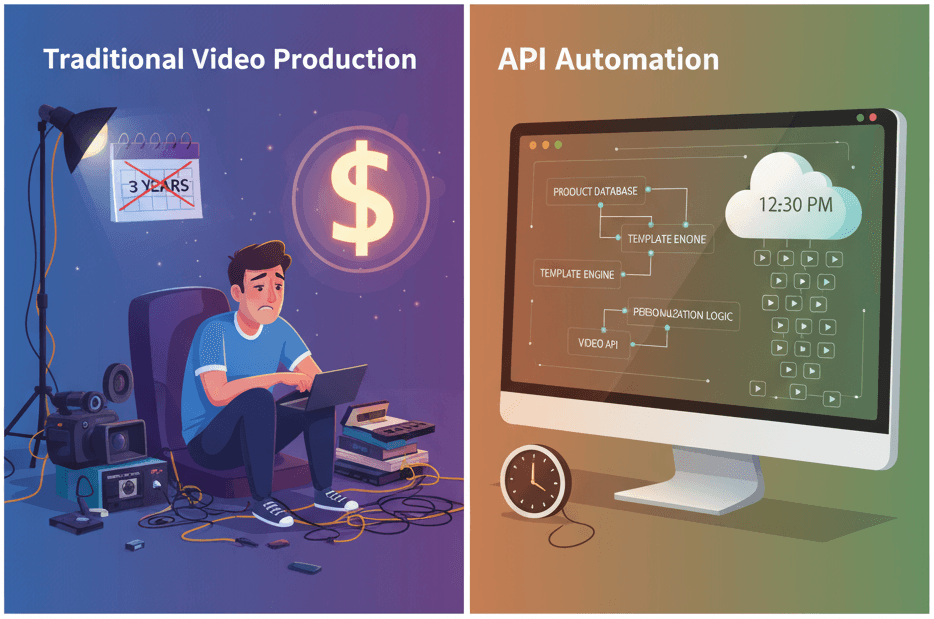
How to Generate 1,000+ Personalized Videos with API Automation (2026 Update)
A 30-second 1080p render costs $0.10 on a template API and $1.50+ on a generative one. Build the bulk pipeline: 1,000 personalized videos queued in under 20 minutes.
May 18, 2026
What Is Programmatic Video? A Developer's Explainer
Programmatic video means two unrelated things. For developers it means rendering a video file from JSON - one POST, no editor, from $0.10 a minute.
August 25, 2026