
Product Hunt Launch Assets: The Checklist for Launch Day
Every Product Hunt launch asset, in the order to make it. Only 53% of Product of the Day winners had a video, and ours renders free in about 40 seconds.

Founder
Product Hunt launch assets are a short list, and the video is the one most launches skip. We shipped a free tool this week that turns a product name, a tagline and three lines into a 1920x1080 launch video, with no account and no credit card. It lives at /tools/product-hunt-launch-video, and it exists because the reason that video keeps getting dropped stopped being true.
The reason used to be time. A launch video meant a day in an editor, or a freelancer, or a subscription to something with a timeline in it, and launch week has no spare days in it. So the gallery ends up as five screenshots and the launch goes out anyway.
This post is the wider list: everything a launch page needs, roughly in the order you should make it, with the video treated as one item on a checklist rather than a project. If you only want the video, skip to the tool. If you want to know what else is on the list before you start, keep reading.
Key Takeaways
- Product Hunt asks for a required square thumbnail (240x240 recommended) and at least two gallery images at 1270x760, all under 3 MB.
- Video is optional, and it is a YouTube link rather than an upload. Product Hunt says about 53% of Product of the Day winners since 2021 included one.
- Renderly's four launch templates run 17 to 27 seconds at 1920x1080, and two of them need no screenshots at all.
- Measured on production this week: a render finishes in 36 to 45 seconds, the file lands around 3.5 MB, and the download link lasts 7 days.
- Free means free. No account, no email, no card. The video carries a small "Made with renderly.video" credit on the final frame, and that credit is what pays for the render.
What Goes on a Product Hunt Launch Page
A launch page is a short form with a media section attached. The copy is a name, a tagline, a description and a set of links. The media is a required thumbnail, at least two gallery images, and an optional video. Everything else that happens on launch day, the comments, the points, the badge on your own site, hangs off those fields.
Product Hunt publishes the specs itself, in its launch guide and in the help centre article on how to post a product. Collected in one place:
| Asset | The spec, in Product Hunt's words | The trap |
|---|---|---|
| Name | "Only the product's name, no description or emojis" | Adding the descriptor. The tagline is the descriptor |
| Tagline | "Tagline (max 60 characters)" | Writing a slogan instead of a sentence that says what it does |
| Description | See the note below. Write to 260 characters and you are safe | Pasting homepage hero copy, which was written for a different reader |
| Links | Where an interested person goes next | Sending everyone to a signup wall rather than something they can look at |
| Thumbnail | Required, square, "We recommend 240x240", under 3 MB | A full logo lockup that becomes unreadable at feed size |
| Gallery images | "Two required", "recommended size ... is 1270x760", under 3 MB | Five shots of the same screen in different states |
| Gallery video | "Optional", and "only YouTube links are supported" | Leaving the YouTube upload until launch morning |
| First comment | Your own opening comment on the launch | Writing it at 12:05 am, tired, in a box you cannot preview |
Two things in that table are worth pulling out, because they are the ones that bite.
The description limit is published twice, with two different numbers. The launch guide says "Description (max 500 characters)". The help centre article, last updated in May 2025, says the same field takes information "within 260 characters". We fetched both on 2026-09-08 and they still disagree. Until Product Hunt reconciles them, write to 260 and the question never comes up.
The video is a link, not a file. Product Hunt's own wording is "only YouTube links are supported", and it wants "the full URL". That has a real consequence for your prep order, which is the next section but one.
Everyone gets the same page shape, the same fields and the same day, so the only thing that varies is how fast a stranger understands the product. That is decided by the tagline and the gallery, which is also where the last free hour before launch should go. Rewriting the description a fourth time does very little. Replacing a screenshot that needs a caption with one that does not does a lot.
Does a Product Hunt Launch Need a Video?
No, and Product Hunt says so itself, with a number attached. Its launch guide puts the field under the heading "Video (optional)" and adds: "About 53% of products that reached Product of the Day since 2021 include a video, so videos can help depending on what your product is, but aren't always necessary" (Product Hunt, retrieved 2026-09-08).
Fifty-three per cent is a useful number precisely because it is not ninety. Roughly half the winners had a video and roughly half did not, which is the opposite of what most launch checklists imply. It also sits beside two other figures on the same page that are worth seeing together:
The first comment beats the video, and it is free. If you have one evening and you have to choose, write the comment.
Beyond the number, here is where a video actually helps, because these reasons are structural rather than statistical:
- The product is hard to photograph. A CLI, an API, an SDK, a background job, anything whose value is a sequence rather than a screen. A screenshot of a terminal is a screenshot of text. A terminal that types is a different thing.
- The pitch is a before and after. Two states with a transition between them is a video-shaped idea. Two screenshots side by side is that same idea with the interesting part removed.
- You want one asset that goes everywhere. This is the underrated one. A 16:9 MP4 works in the gallery, in the launch post on X, in a LinkedIn post, on the landing page above the fold and in the email to your list. A set of screenshots does not travel like that.
- You have nothing to show yet. A pre-launch product with no polished UI still has a name, a promise and three reasons. That is a typographic video, and it beats a blurred mockup.
The case against is simpler. If you have a beautiful product with an obvious interface, five good screenshots may be all you need, and the hour is better spent on the first comment. Nobody has ever lost a launch by not making a video. Some people have lost an evening making one.
How to Make a Launch Video in About a Minute
Pick a template, type your copy, download the MP4. That is the whole flow at /tools/product-hunt-launch-video, and there is no account step anywhere in it.
There are four templates, each with its own page, and they differ mainly in what you have to bring:
| Template | Length | What you bring | Built for |
|---|---|---|---|
| Typographic | 21s | Name, tagline, three lines. Logo optional | A product with nothing pretty to show yet |
| Dev tool / CLI | 27s | An install command and a run | A CLI, an SDK or an API |
| Web app | 17s | Three wide screenshots | A SaaS product with a browser UI |
| Mobile app | 18s | Three portrait phone captures | An iOS or Android launch |
All four render at 1920x1080. That is the shape a gallery, a YouTube embed and a launch post all want, and it is the only shape these four templates come in. There is no vertical or square version of them, so if you need a 9:16 cut for Reels or TikTok, that is a different template and a different job.
Two things about the editor are worth knowing before you open it:
The preview updates as you type. Not on a button, on the keystroke. This matters more than it sounds, because the failure mode of every template tool is a line of copy that fits in the input box and not in the video.
There is a character counter that warns you before a line runs past its box. Same reason. A template render will happily succeed with text that overflows its layout, which is the single most common way a generated video comes out wrong, so the counter is doing real work rather than being polite.
Screenshots and logos upload as PNG, JPG or WebP. SVG is deliberately not accepted, which occasionally annoys someone with a nice vector logo: an SVG is a script container, and one served back from our own domain would be stored cross-site scripting. PNG at 2x is the answer there.
Clearing one field turns it into a general launch video
Every template carries a launch line with the Product Hunt badge on it. Clear that field and the badge goes with it, leaving a plain launch video with no reference to Product Hunt at all.
That is the version to post on X and LinkedIn a week later, or to drop at the top of a landing page, or to attach to the email that tells your list you shipped. It is the same render, minus one line of text, which is the closest thing to free that a second asset gets.
The MP4 is not the last step
Product Hunt does not take a video file. It takes a YouTube URL. Its help centre puts it plainly: "For uploading, only YouTube links are supported", and "they will also need to be the full URL". So the real sequence is render the MP4, upload it to YouTube, then paste the link into the launch form.
Two details make that worth doing days early rather than on the morning:
- YouTube needs time. Product Hunt's own troubleshooting article says newly uploaded videos "may not be immediately available for integration due to processing delays", and advises waiting "approximately 12 hours and then try again" (Product Hunt Help Center, retrieved 2026-09-08). Twelve hours is longer than the gap between "I'll do it tonight" and 12:01 am.
- Private videos fail silently. The same guidance tells you to check that the video's sharing settings allow public sharing or embedding, and the launch guide asks you to confirm it is not set to private. An unlisted or public video works. A private one produces an error at the moment you have the least patience for one.
None of this is hard. It is just an extra day in the calendar that nobody puts there.
What "Free" Actually Means Here
No account, no email, no credit card, and no trial that expires. The video carries a small "Made with renderly.video" credit on the final frame, and that credit stays. There is no paid tier that removes it, because it is the only thing we get back from a tool that costs us a real render and asks you for nothing.
Two clarifications, since "free video tool" usually means something else:
- There is no watermark over your footage. The credit is a frame at the end, not a logo sitting over your product. Those are different things and the word "watermark" gets used for both.
- The credit is not a plan gate. Signing up does not remove it. If a tool tells you a free video is watermarked until you upgrade, that is a trial. This is not that.
What a free account does add is unrelated to the video you just made: your work is kept so you can re-edit it later, the other 99 or so templates open up, you can render from an API or a spreadsheet instead of a form, and there are 5 credits to try any of it. None of that changes the file the free tool gives you.
What happens when you press Render
The interesting part of the answer is that nothing special happens. The job goes onto the same queue that paying customers' jobs go onto, and it is rendered by the same fleet, from the same template system, at the same quality. It sits at a lower priority than paid work, so a paying customer never waits behind a free render, and that is the entire difference.
Measured on production this week, a render finishes in 36 to 45 seconds and the file lands around 3.5 MB. The link it gives you is good for 7 days, so download it rather than linking to ours from your launch page.
Two limits keep the bill survivable, and both are worth knowing so they do not surprise you at 11 pm the night before:
- A few renders per visitor per hour, plus a daily cap across everyone using the tool. On a busy day you may be asked to come back tomorrow.
- Re-rendering the same copy is free and instant. Your inputs are hashed, and an identical hash returns the file that was already made rather than rendering a second one. Tweaking a word costs a render. Changing your mind back does not.
Everything Else, in the Order to Make It
Copy first, images second, video third, and the YouTube upload earlier than feels necessary. That is the order to make your launch assets in, and it is not the order most people reach for. Copy first because everything else quotes it. The video late because it takes the fewest decisions once the copy is settled. The upload early because of that twelve-hour lag.
- Write the tagline. One line, 60 characters. If you cannot say what the product does without a subordinate clause, the product page will not either. This line ends up in the video, the OG card and the launch post, so it is worth the hour.
- Write the description and the first comment. The first comment is the one people actually read: why you built it, what it does not do yet, what you want feedback on. Product Hunt says 70% of products that reached Product of the Day, Week or Month had one. Write it now, not at midnight.
- Make the thumbnail. Square, 240x240, under 3 MB. It is seen at feed size, so test it at about the size of a fingernail before you commit to it.
- Assemble the gallery images. Two minimum, 1270x760, under 3 MB each. Different screens, not the same screen in different states. Caption them in the image itself where the interface is not self-explanatory.
- Render the launch video. The render itself is under a minute; call it fifteen once you count the copy tweaks. Then render it a second time with the launch line cleared, and you have the version for everywhere else.
- Upload it to YouTube, not on launch morning. Public or unlisted, never private, and at least a day ahead so processing has finished. Keep the full URL somewhere you can paste it from.
- Make the OG image for your own site. The launch drives traffic to your domain, and a link with no
og:imageships as a grey rectangle. Our free OG image generator does this in the browser, and we wrote up what the platforms actually require. - Schedule and preview the evening before. Product Hunt lets you schedule a launch up to 30 days out, and its day runs on Pacific time, so the conventional slot is 12:01 am PT for a full 24 hours on the homepage. Look at every asset, in place, on a phone, before you go to bed.
The order matters more than it looks. Steps 1 and 2 are the only ones that need a clear head, and they are the ones people leave until last.
After the Launch, the Same Assets Keep Working
With the launch line cleared, the file you rendered for launch day is a plain product video, and that is one of the few assets that stays useful for months: the top of a landing page, autoplaying muted, which is why the templates are built to read without sound; the post on X or LinkedIn a fortnight later, when the spike has passed; the email to your list; the investor update; the changelog entry for the release it announced.
If you find yourself wanting one of these per feature rather than one per launch, that is where a form stops being the right shape and an API starts being it. That is the paid product, and it is a different post: rendering many videos from one template covers the model, and the API docs cover the call.
Wrapping Up
A launch page is a handful of copy fields and a gallery, and the gallery is where the difference is. Video is optional there, but it stopped being expensive, which removes the only good reason most launches did not have one.
If you are launching in the next few weeks, the launch video tool is here. Four templates, a live preview, a real 1920x1080 MP4 in about a minute, no account and no card. The credit frame at the end is the price, and it is the whole price.
Frequently asked
What assets do I need for a Product Hunt launch?
Does a Product Hunt launch need a video?
Do you upload a video to Product Hunt or link it?
How long should a product launch video be?
Do I need screenshots to make a launch video?
What is the difference between a launch video and a product demo?
When should launch assets be finished?
Related Articles
Free OG Image Generator: Make Open Graph Images
Design Open Graph images free, no sign-up or watermarks. Six templates at Meta's recommended 1200x630, exported as PNG, JPEG, or WebP in your browser.
September 7, 2026
How to Trim a Video in Your Browser (No Software, 2026)
Trim videos in your browser, free, with no upload and no install. ~95% of browsers now run ffmpeg.wasm locally, so your file never leaves your device.
June 18, 2026
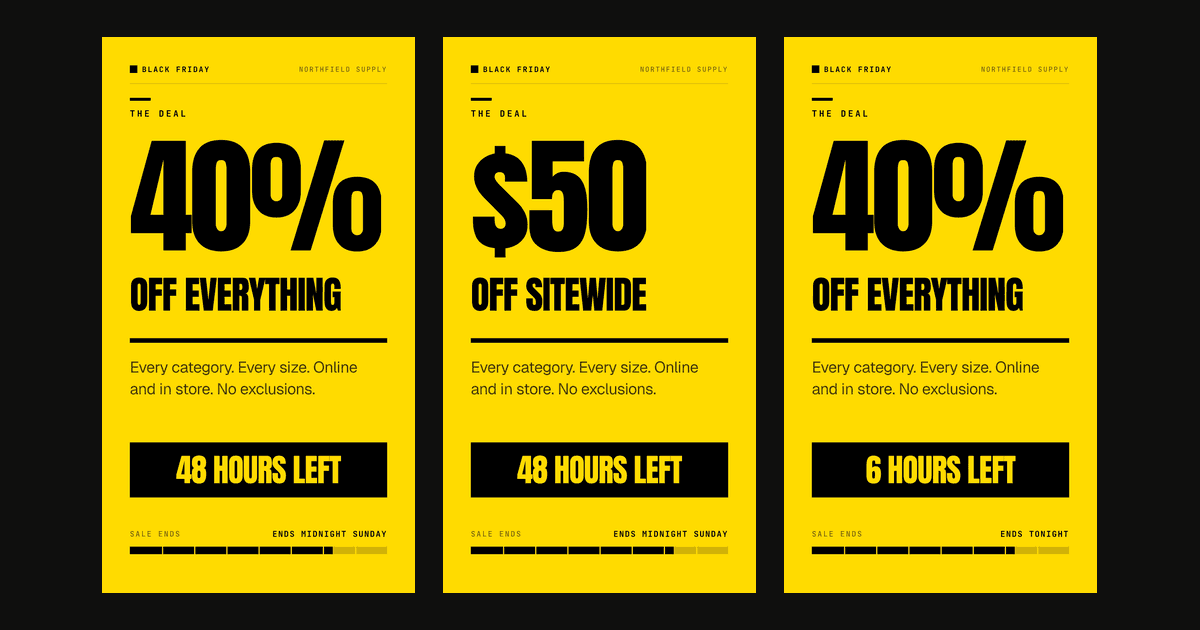
Social Media Video Automation: Batch-Render Ad Variants
TikTok suggests 3-5 creatives per ad group across 3-5 ad groups, so up to 25 videos. We rendered variants of one 9:16 template in 13 to 19 seconds each.
August 20, 2026